Amiga 4000D setup for PCI card installation and test run
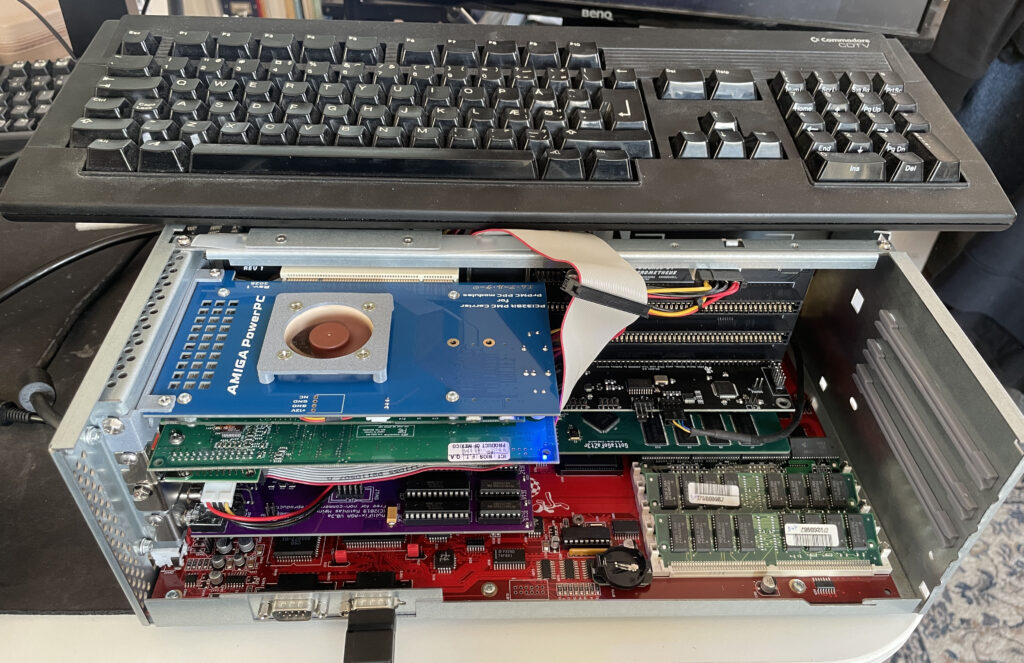
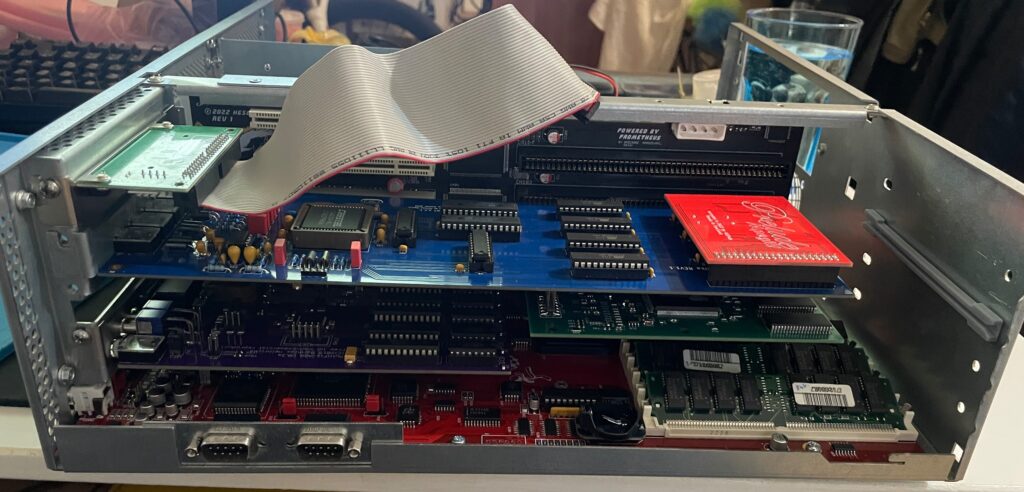
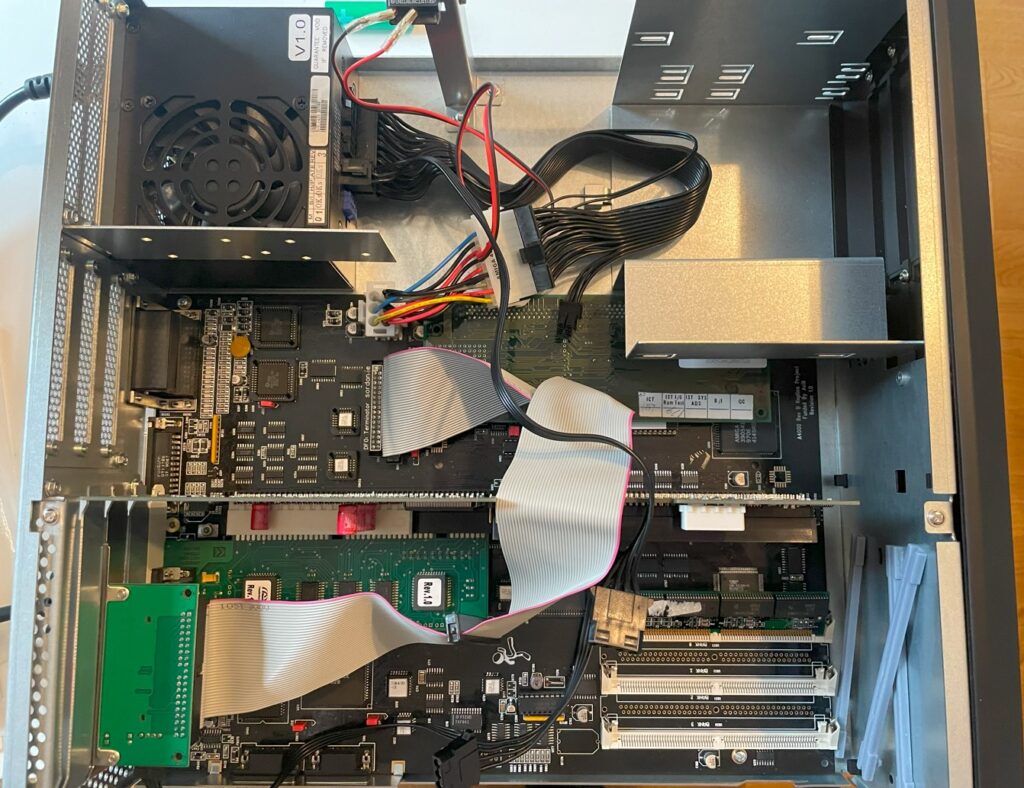
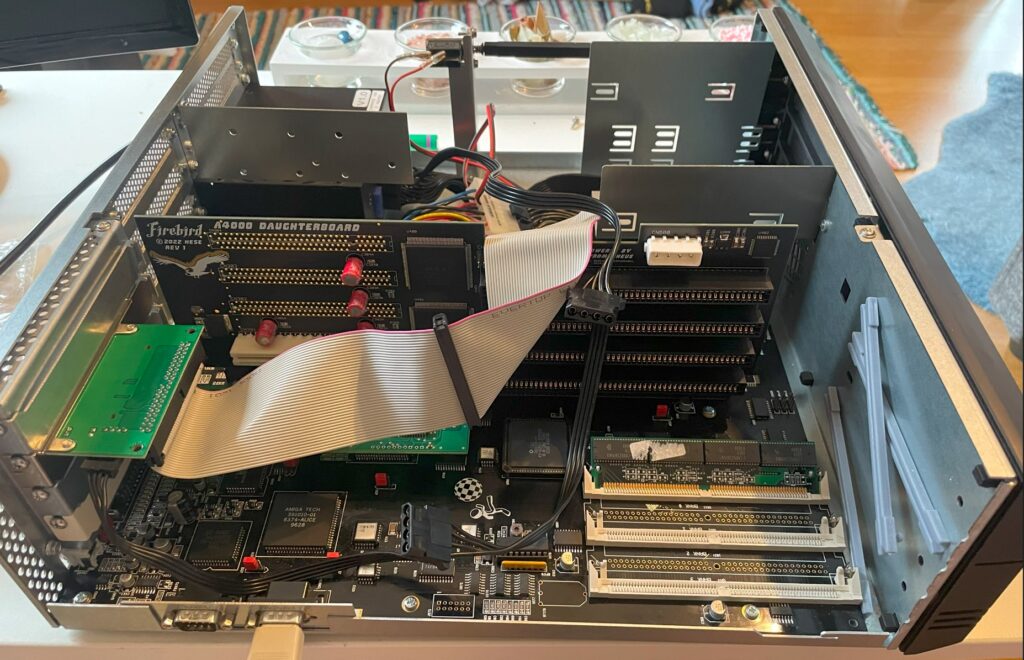
Here is my Amiga 4000D with PCI slots. It has an Firebird daughterboard that has PCI slots, Zorro slots and one video slot. More information about the Firebird PCI boards here.
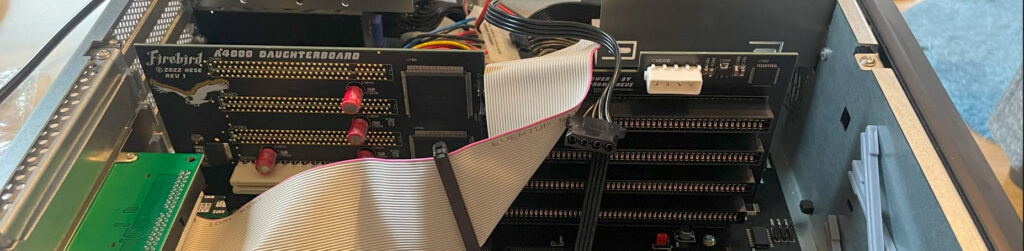
Firebird PCI daughter board for Amiga 4000D
This is an older picture of my Firebird PCI daughterboard with no cards mounted to it to get a better look at it. This was before it was fully built, that is why it only has one PCI slot.
I tried PCI on the Amiga years ago on my A1200 with a Mediator A1200LT – I was not sold on the concept as I felt the performance was lacking. Since then I wanted to give PCI on the Amiga a fair chance again and so I had to get the Firebird to try out PCI on a big box Amiga properly!
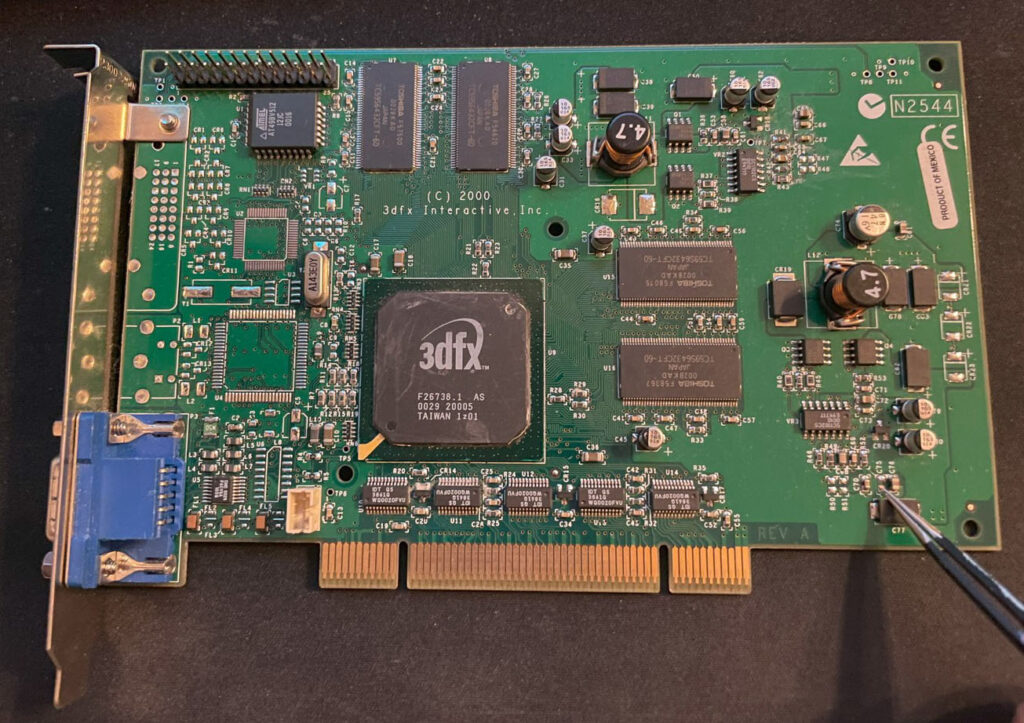
3DFX Voodoo4 PCI
Here is a 3DFX Voodoo 4 PCI graphics cad I got years ago, back when they sold for a reasonable sum. It has spent close to 15 years in storage. Along the way it got a capacitor knocked off (that I am pointing on). I replaced the capacitor, added a heatsink and fan to it and hoped that it would still work.
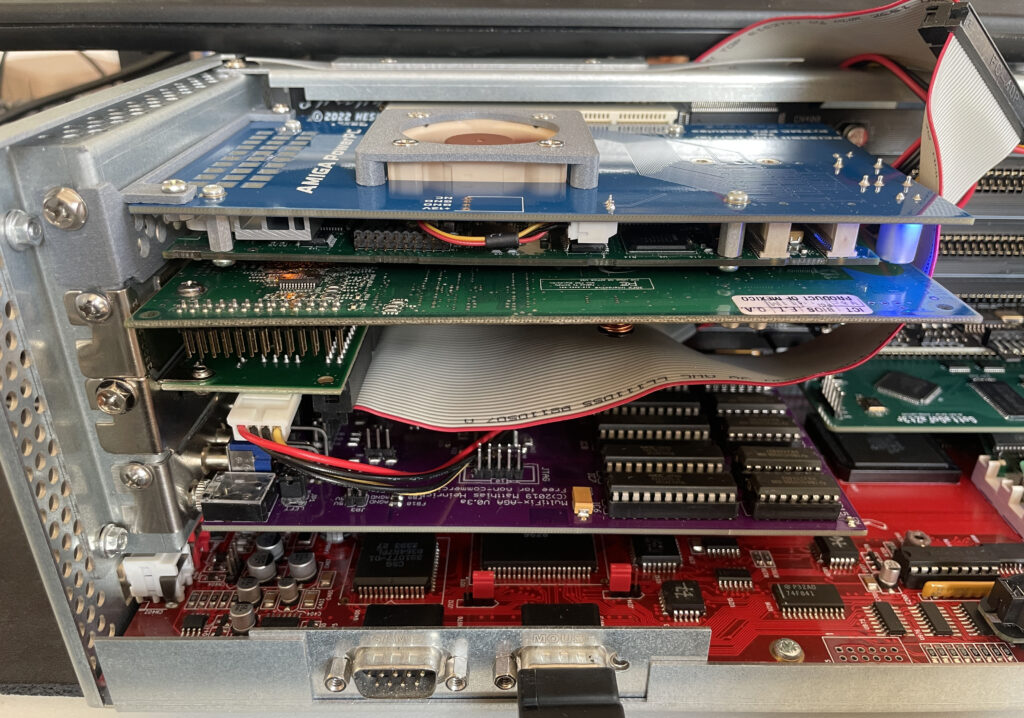
Amiga 4000D with PCI cards, Zorro cards and a video slot card
Here is a closeup of the Amiga 4000D with the Firebird PCI board holding the Voodoo4 PCI card and a PMC carrier holding a PPC card. I will make a separate post about the PPC card in the top slot in the future. The other cards you see is a purple Multifix-AGA, GottaGoFaZt3r and a CPLDICY.
Testing Voodoo 4 PCI RTG output in Workbench with HippoPlayer
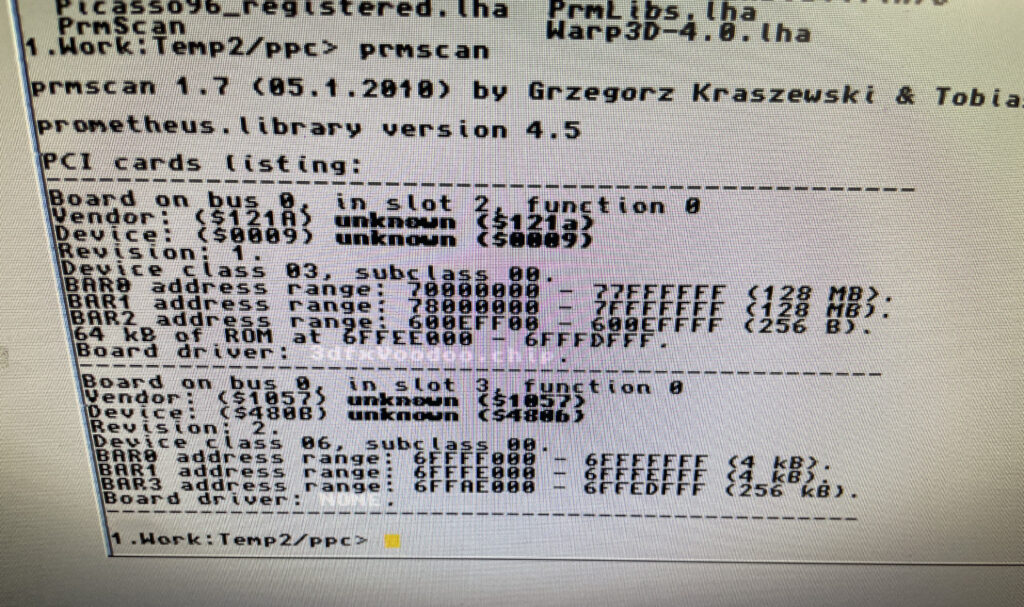
…aaaaand surprise, the 3DFX Voodoo4 PCI graphics card worked!! Installation went really smooth even if it was not a simple point and click installation.
Looking at the cards listed on the PCI bus
There is only so much time on the weekend so I ran out of time installing the PPC card, hopefully I will look into it next time. I will also need to set up an automatic switcher between RTG and scandoubled output. As usual, you are never done in this hobby….
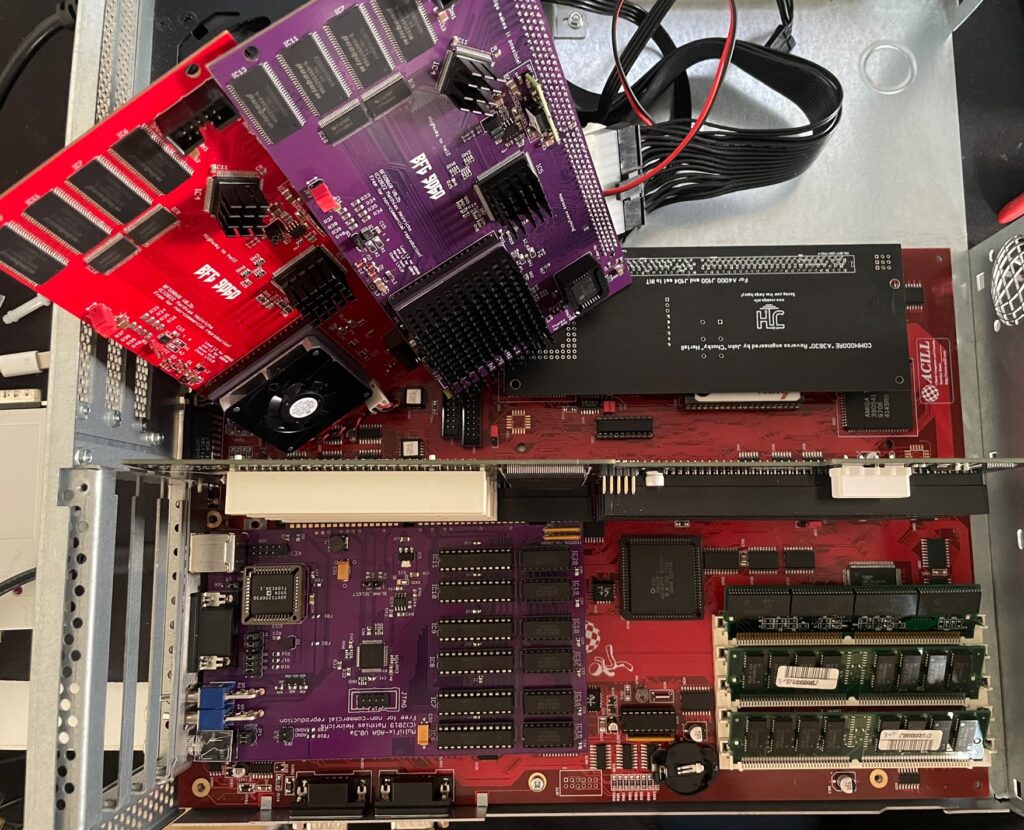
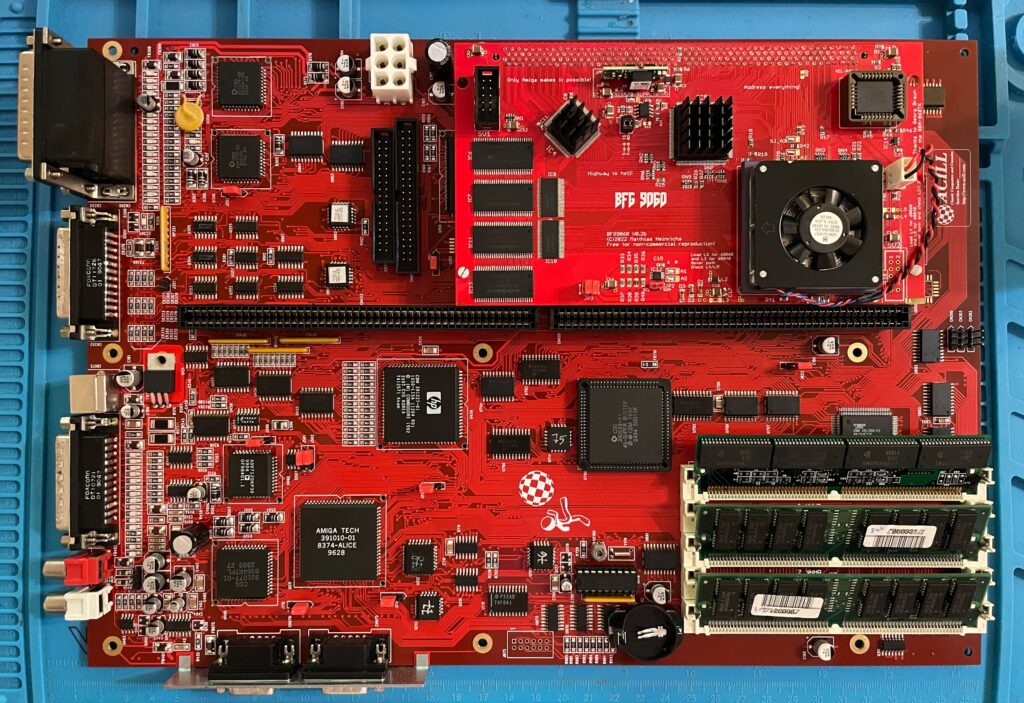
Here is my test setup: Acill A4000D motherboard with ReA3630 and two BFG9060 cards including Firestorm PCI daughterboard, Multifix-AGA and a replica A4000D case
I had two summer projects this year that I recently finished. One was an Acill A4000D replica motherboard and the other was a Hese made A4000+ Alice A4000D CR motherboard replica. You could say two brothas from different mothas or something…
Both motherboards worked fine when doing basic test runs, however they both failed to run with a BFG9060. All I got when running them with a BFG9060 060 CPU card was a black screen.
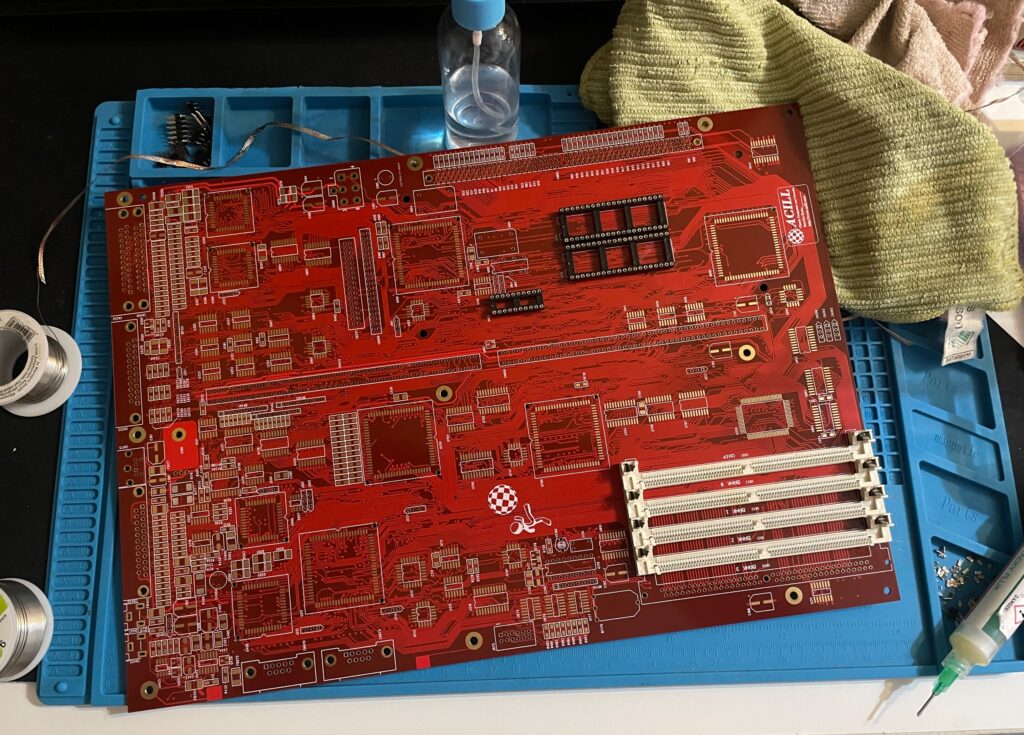
Amiga 4000D motherboard in shiny red
Anyway, as usual building them up was pure pleasure from start to finish. I even enjoyed desoldering the Acill A4000D motherboard from a few passives and pin headers someone else had a false start with. I mean, off course you want a full set of pin headers soldered to your 400+ small parts PCB (not really).
As good as it was looking it failed to run with the BFG9060. It was working fine with the A3630 CPU board I built earlier this year, but not with the 060 card. That reminded me that I had the same problem with my Alice A4000D motherboard a couple of weeks ago.
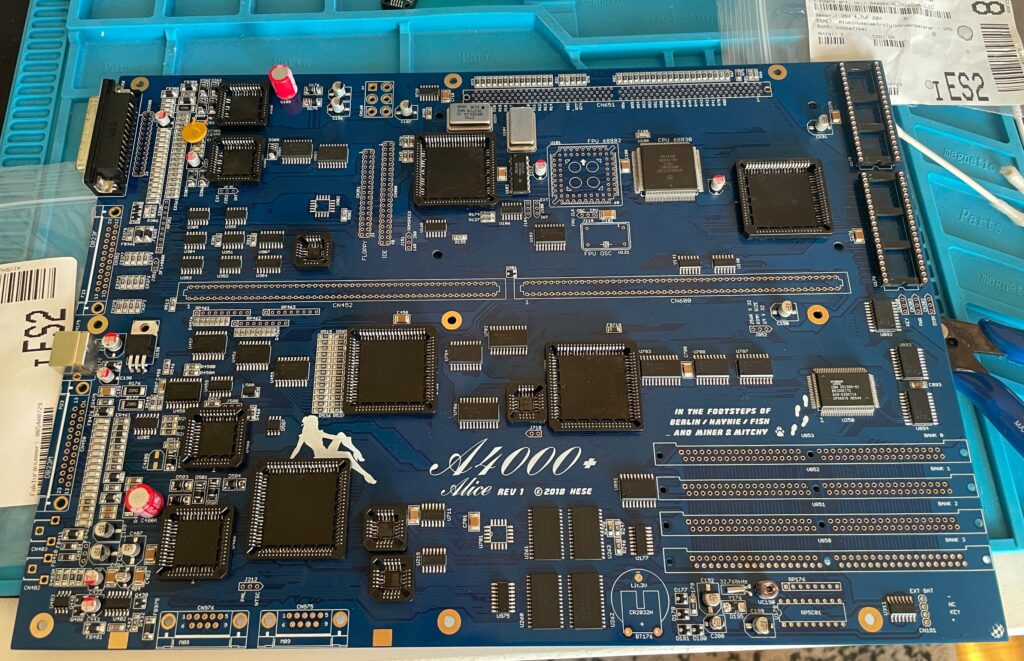
A4000+ Alice motherboard during assembly phase
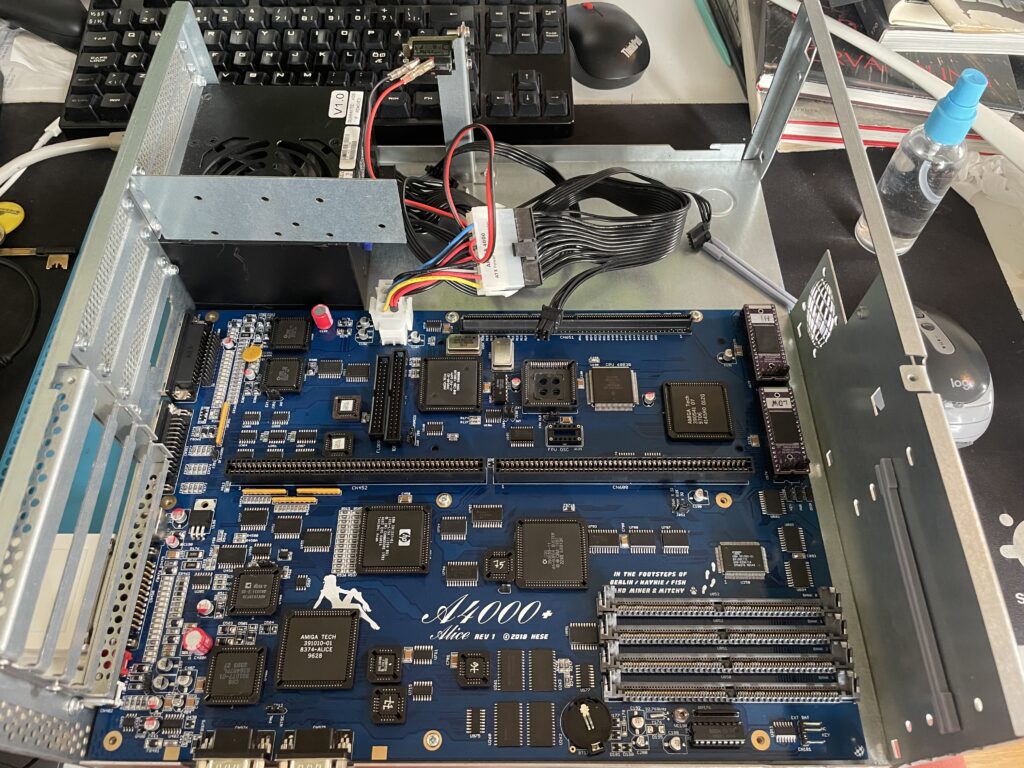
The Alice A4000D has an 030 CPU on the motherboard so it does not need a CPU card. It was working fine with the on board 030.
Here is the A4000+ Alice motherboard during the testing phase inside the A4000D case
I got the suggestion to try a new delay line as that could be the problem the CPU card failed to run. As the A3630 has exactly the same CPU as the one mounted on the motherboard, it is difficult to say if the A3630 was running or not.
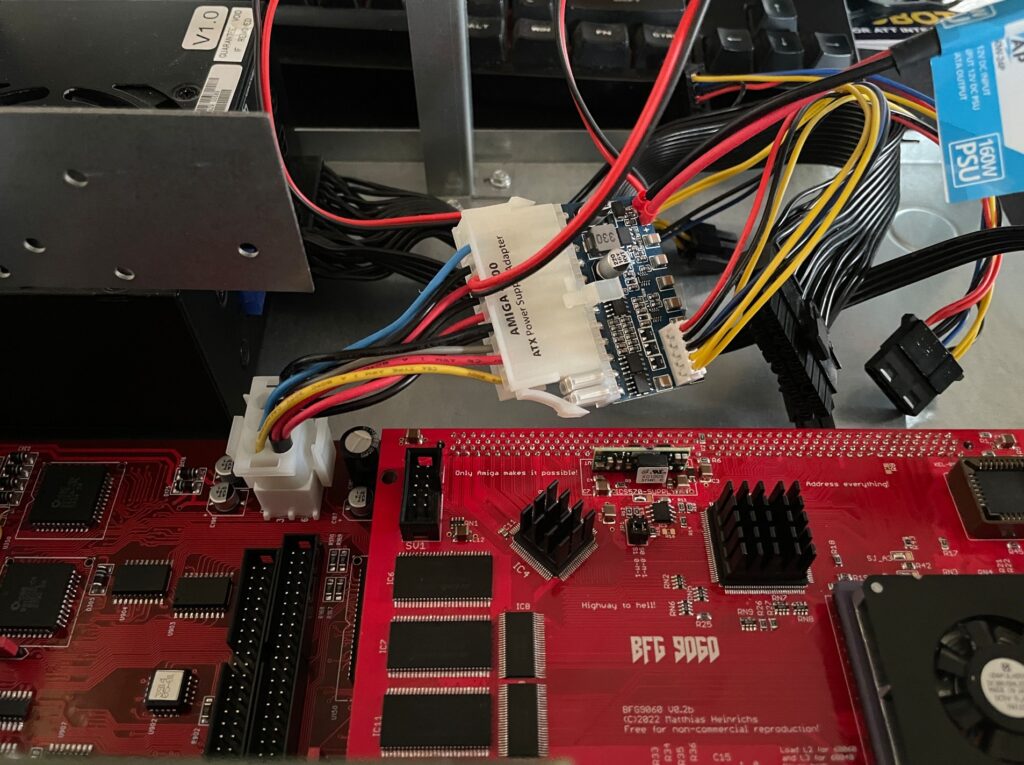
Testing the A4000D motherboard + BFG9060 with a PicoPSU
If you are in this hobby you have to grow a passion for trying all hardware combinations to find the solution. In this case, the reason for the Amiga 4000 getting a black screen when running a BFG9060 was the PSU as everything seemed to run fine with another PSU than the SFX one I had in the A4000D case.
I changed the SFX PSU that previously was working fine with the EXACT hardware setup I am running here (but different Amiga 4000 motherboard) with a small ITX PSU and suddenly DiagROM worked fine and detected the 060 CPU.
This lead me to believe that maybe the PSU was not pushed too hard as some ATX PSUs fail to run if there is a tiny load on them (or something like that). So I decided to do a final test by adding some cards to my A4000D and try the SFX PSU again.
Unfortunately it did not start with the SFX PSU and 060 card even if I loaded the machine with all Zorro slots filled, including adding an old 3.5″ harddrive.
So next step is to get a new SFX PSU. But at least I know I have to working motherboards!
Update! 20251215
Apparantly it was the Kickstart that was the problem.
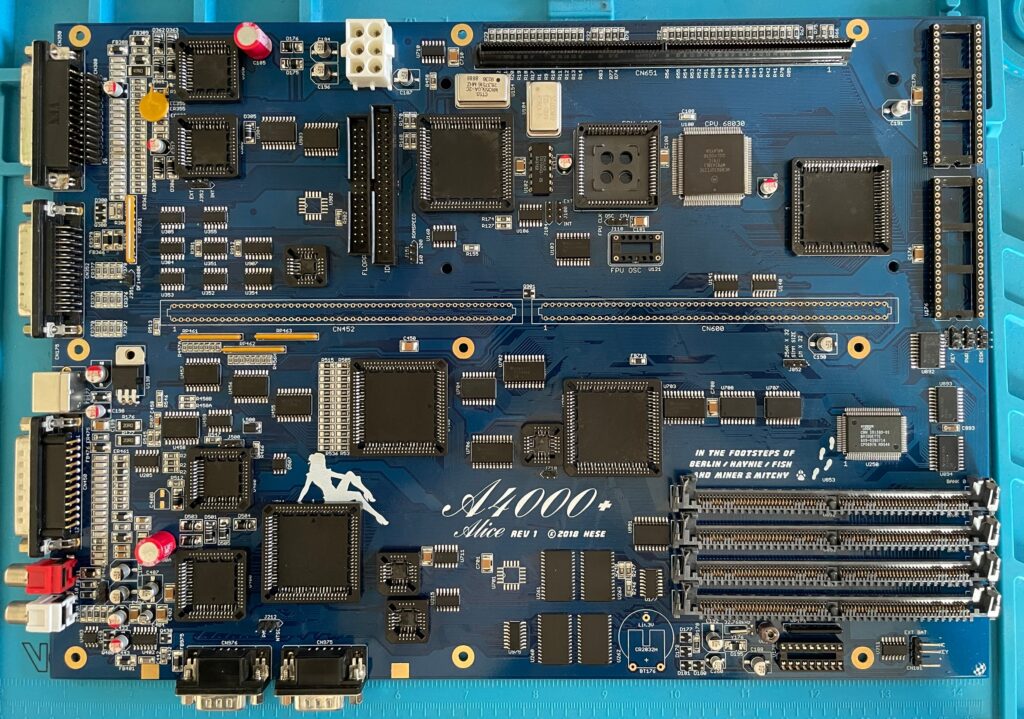
This is an A4000+ Alice PCB, it is an Amiga 4000D CR replica motherboard and it was created by the talented Hese who has made some awesome Amiga clones and hardware available to the community. If you are interested in buying an Alice A4000+ PCB, check out this thread on AmiBay (not sure you can still get one though but maybe one shows up second hand).
This was supposed to be my summer project of 2025 and I could not resist to share it on my blog even though it is not 100% finished yet. It took me about 2-2.5 months to reach this state as I was in no hurry during the summer to finish it. It is almost finished, just missing the DB slots, battery holder, two sockets and an electrolytic capacitor. Oh and all the custom chips off course, but I have a full A4000 chipset sans Buster and Ramsey…
A full socket Amiga 4000D motherboard build
The reason I did a full socket built was that I was thinking it could come in handy if I would need to test custom chips in the future. One of my A4000TX motherboards was built with sockets, but I did a bad job, cutting out the center sections from the sockets before soldering them. So I want to convert the A4000TX to soldered custom chips and have this one as my primary testing station (or primary A4000D motherboard, nothing is static in this hobby).
The other reason I did a full socket build was that there are quite a few projects around where users are looking into cloning the custom chips. Most of these solutions are using a PLCC plug that mounts in a PLCC socket, so if everything goes as it should go, perhaps we can have full custom Amiga chip clones in the near future! Woops, better sell your stash of Buster 11 while you still can get 150+ euro for them!
On schedule and rocking + two more weeks!!!!
The A4000CR is an interesting motherboard as it is slightly different than previous revisions of the A4000D motherboard. There is a 030 on the PCB and the chip memory is already soldered to the PCB, thus it only has four memory slots in comparison with previous revisions of the motherboard that had 5. So if it comes without a 030 CPU board and with one less SIMM socket, there is some money to be saved, thus CR.
Once this project is fully finished, I then have a beautiful red Acill A4000D motherboard to build, perhaps my next summer project?
Can’t wait to fire up this beautiful blue Amiga 4000D motherboard in a month or two and give it a test run.
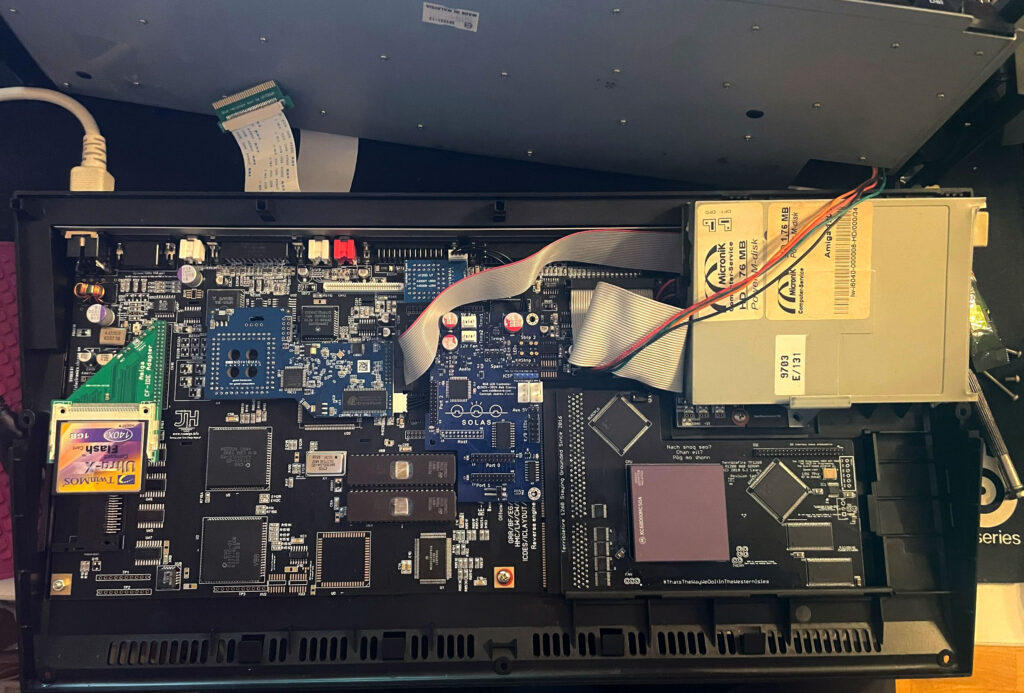
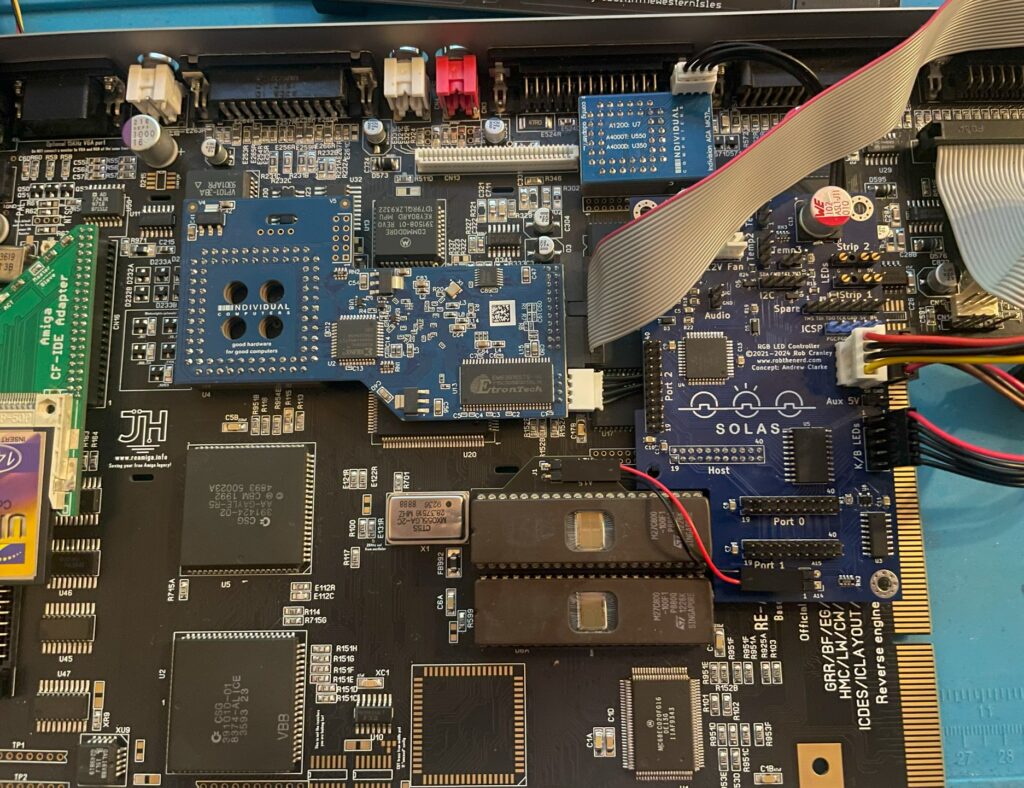
Solas installed in my ReAmiga 1200, it is the blue board to the left of the floppy drive
I have recently been playing around with the highly sought after Solas. The Solas is an RGB LED controller for the Amiga, it also has some other interesting functions. Solas connects to the Amiga on the clock port and can control two LED strips. Solas has also the ability to control fan speed and measure temps. It is also a clock port multiplier!
While I am not very interested in RGB lightning in computers typically the difference here is that the RGB lights can react to the sound the Amiga is putting out. When playing a module you can see the LED strip jumping to the beat of the music. How nice!
I enjoy playing modules on the Amiga and all kind of graphical visualizers for module players are all kinds of awesome. The more the better – I have been thinking of hooking up external VU meters for many years but to have them integrated into the Amiga is much better!
Before we contionue – If you are interested in the Solas board I highly suggest visiting the official Amiga Solas website and ordering one now! These days, good things come in small batches in the world of Amiga and if you dont hop on the train before it has left the station, sometimes it never comes back.
Building the Solas LED controller
I like building hardware myself so I asked if I could get the Solas as a kit, which I could. I also got a second Solas already built, it is a long story why and I wont write it down here to bore anyone. Lets just say, resistors can go bad sometimes and sometimes it can be good to have an oscilloscope in your toolbox (I dont have one).
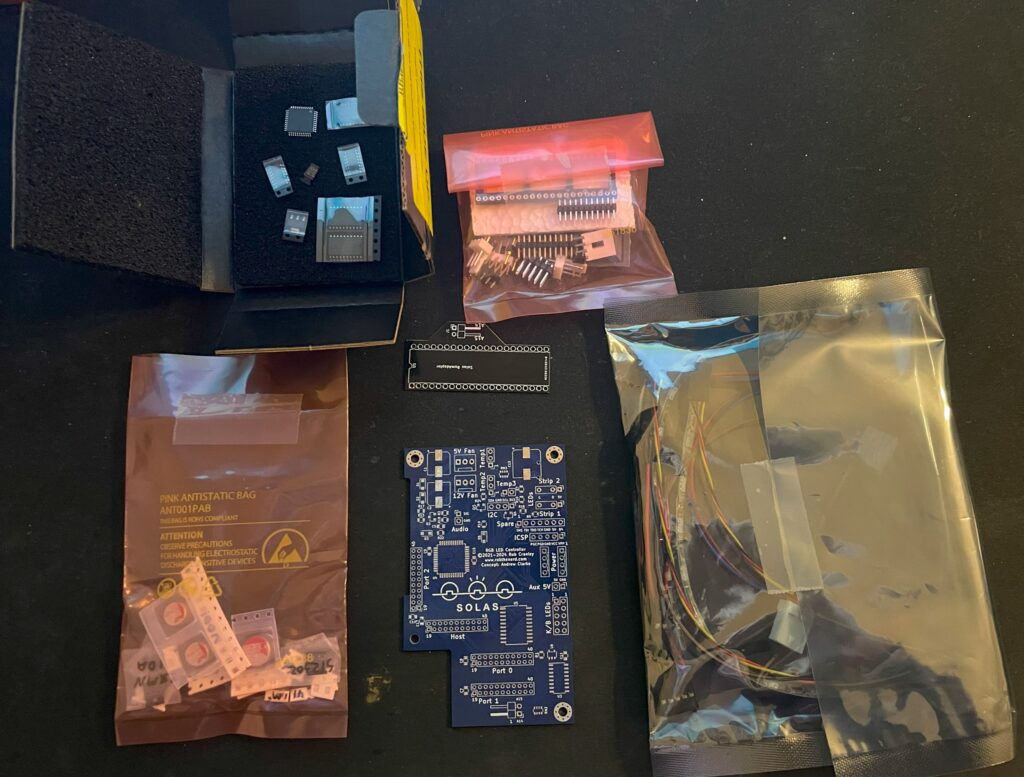
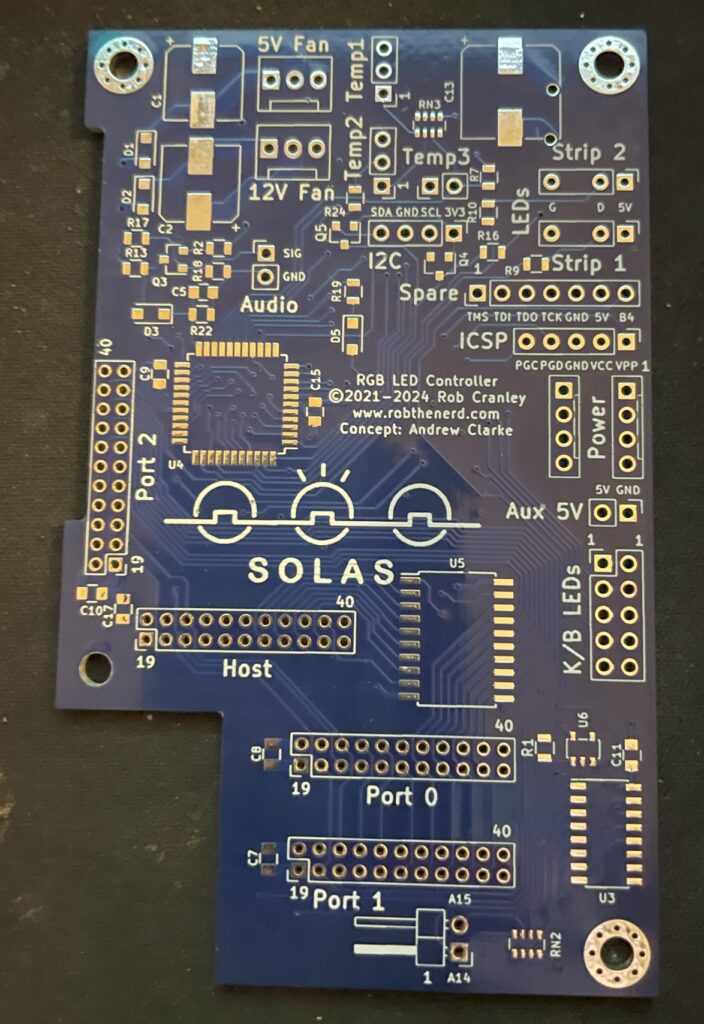
Here is the Solas in kit form. A nice mix of through hole parts and surface mount components. Also note all the cables for the temp sensors and power cable.
Front side of Solas Amiga RGB LED controller PCB
The square space if for the chip that needs to be programmed. You can also see all through holes for pin headers and clock ports. The manual comes in really handy here in understanding how everything is tied together.
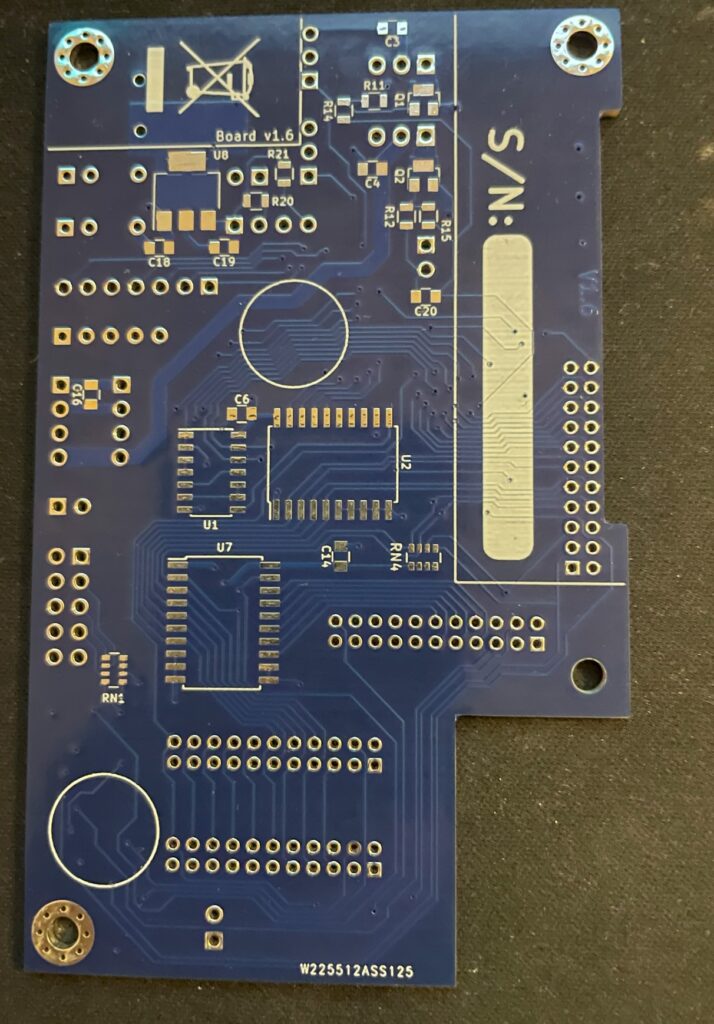
Backside of Solas PCBPrograming the PIC microchip on the Solas
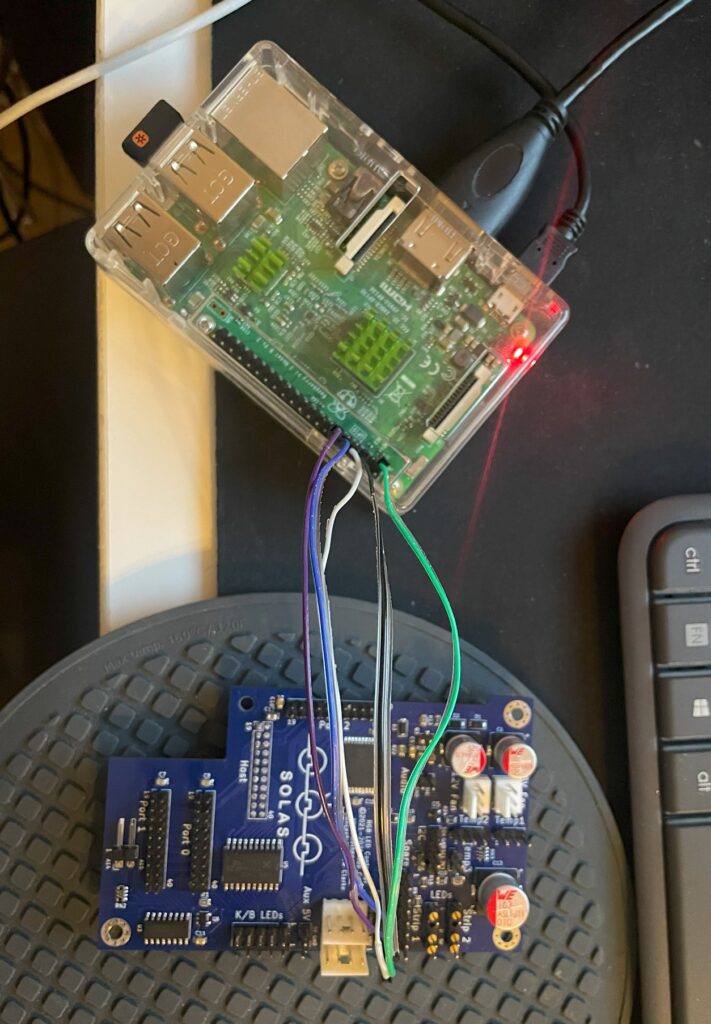
I thought I could program the Solas with my RPI. I have successfully managed to program many projects that uses Xilinx CPLDs with the RPI but was not successful in this case. So I got a cheap Pickit programmer. It is not visible in the image above though but worked fine – setting up the Pickit programmer with the correct software and settings was a nightmare though.
So here is the little PCB finally fully built and installed in the A1200. As it connects to the clock port it is very important that it is fitted correctly on the bottom pins. If you use a cable and mount it wrong way, expect card to break. Why would you mount it on a cable? Say you have an Amiga 1200 tower, it might be better to mount it on a cable so that a Zorro 2 or Mediator backplane can be fitted in the tower. Mounting Solas on a cable is also relevant if you have a clock port in a big box Amiga through a Zorro card.
Next steps, connecting all the cables to Solas and Amiga 1200
Installing and adding cables to Solas in an Amiga 1200
The manual is very good at explaining how you hook up all the cables, it is slightly confusing doing this without consulting the manual trying to figure it out yourself so in this case the manual is a must read (lol). In the image above, there is a small PCB that sits under the upper Kickstart chip and hooks up to the Solas with two wires. That is for activating the other clock ports on the Solas (IIRC).
How to connect sound output into Solas on a ReAmiga 1200?
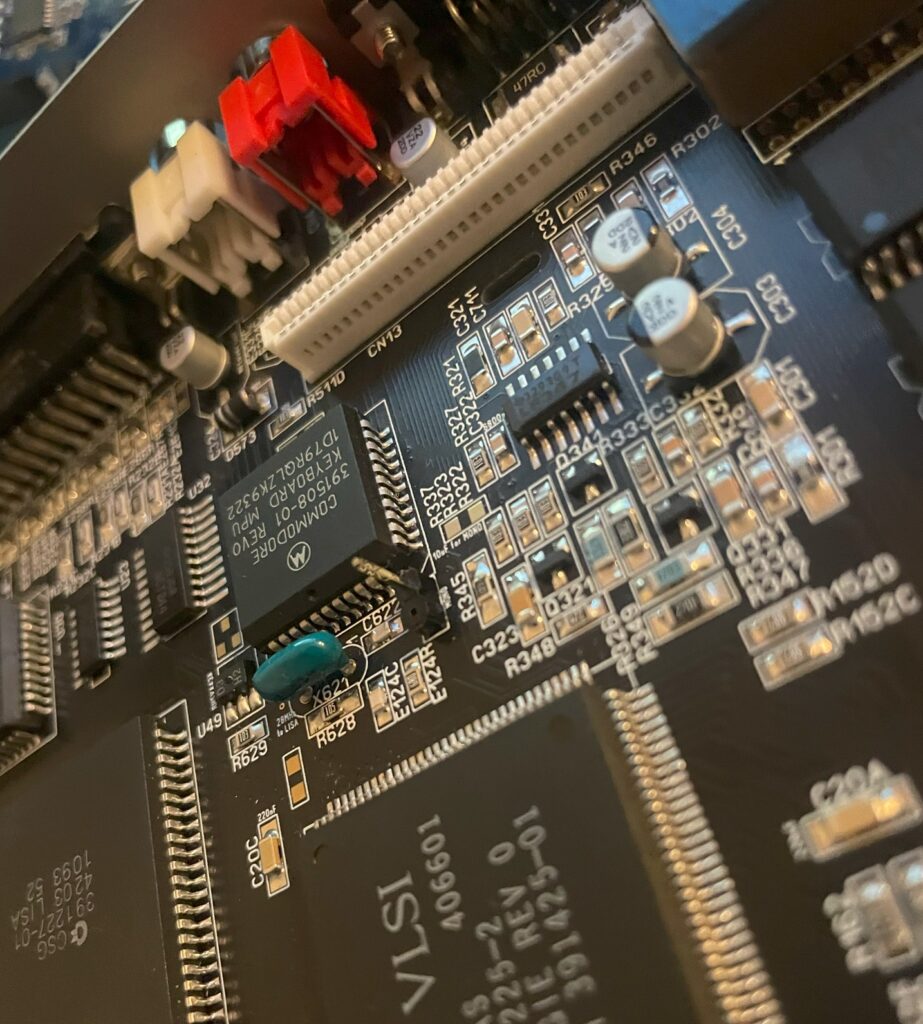
Pin header for mono sound input to the Solas on the ReAmiga 1200 v1.5
Since I was using a ReAmiga 1200 and not a Commodore made Amiga 1200 there is one difference that needs to be taken care of. On a genuine Commodore Amiga 1200, you can pick up mono sound from the modulator. But the ReAmiga 1200 does not have a RF modulator and is missing the mono output there. On later ReAmiga 1200 (I have v 1.5) there is space for a pin header close to the keyboard MPU chip where you can pick up mono sound (see image above where I have soldered on one pin header to the motherboard). Also note the place above and to the right of the pin header where you have to add a 10uf ceramic capacitor. I have not added the capacitor on the picture above.
To get the Solas to react to sound input I also had to place a 10k resistor inline with the cable connected to the pin header and to the Solas board. After that, everything worked fine!
ReAmiga 1200 with Solas installed
So here you can the full setup. Unfortunately it looks a bit messy with the Indivision, CF adapter and all the cables all over the place. It is possible to clean it up a bit, but for testing purposes this was fine. You can also see where I placed the RGB LED strip. I ended up super gluing the LED strip to the case because the sticky backside was not sticky enough. I routed the cable from the Indivision MK3 under the Solas board, made it look much cleaner and works fine.
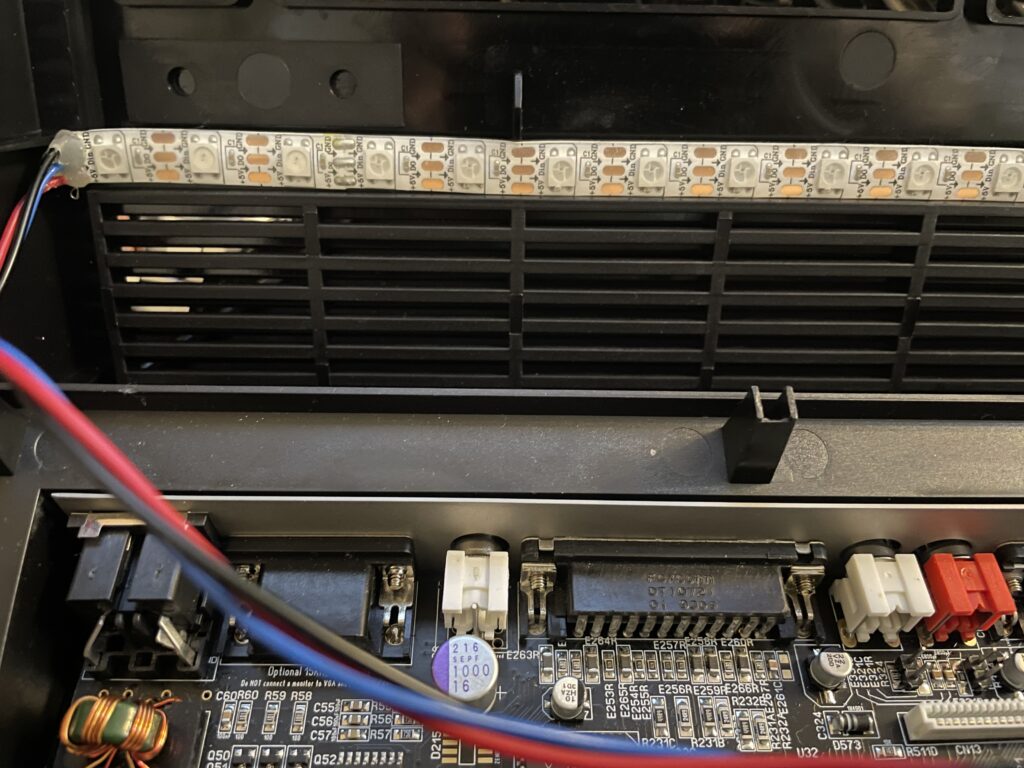
RGB LED strip is mounted to the underside of the upper Amiga 1200 case
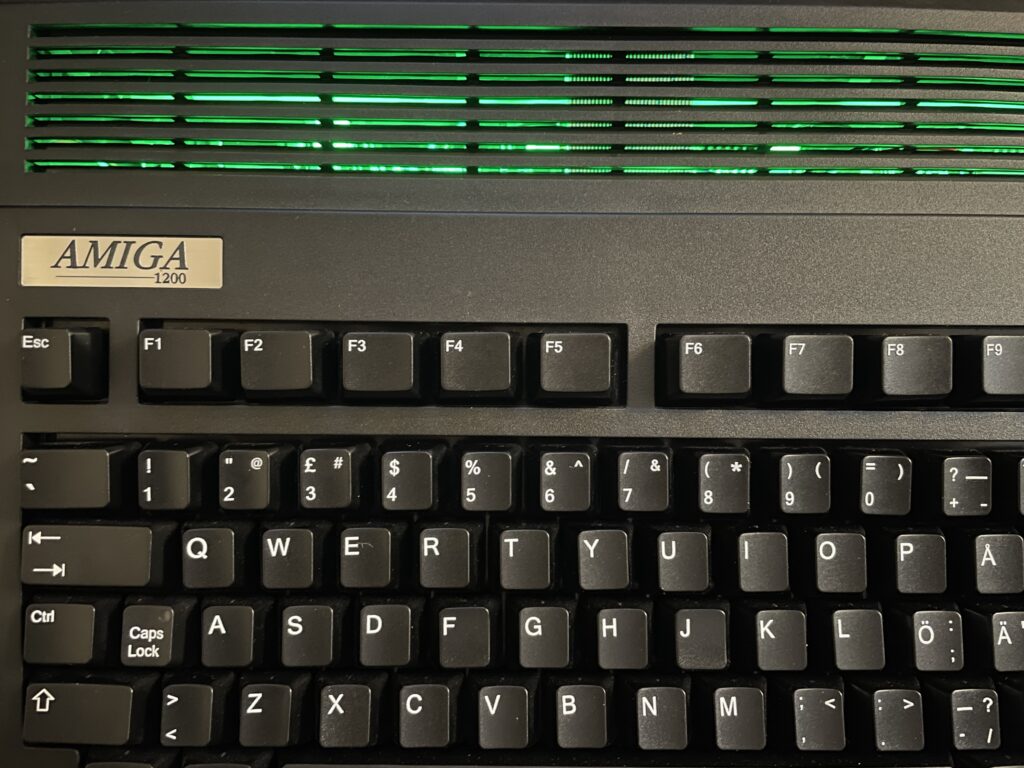
Closeup of where the RGB LED strip is mounted. Even though it is mounted upside down in a solid black case it works fine and you can clearly see the light the LEDs are emitting when they are lit.
SolasControl – Software to control Solas
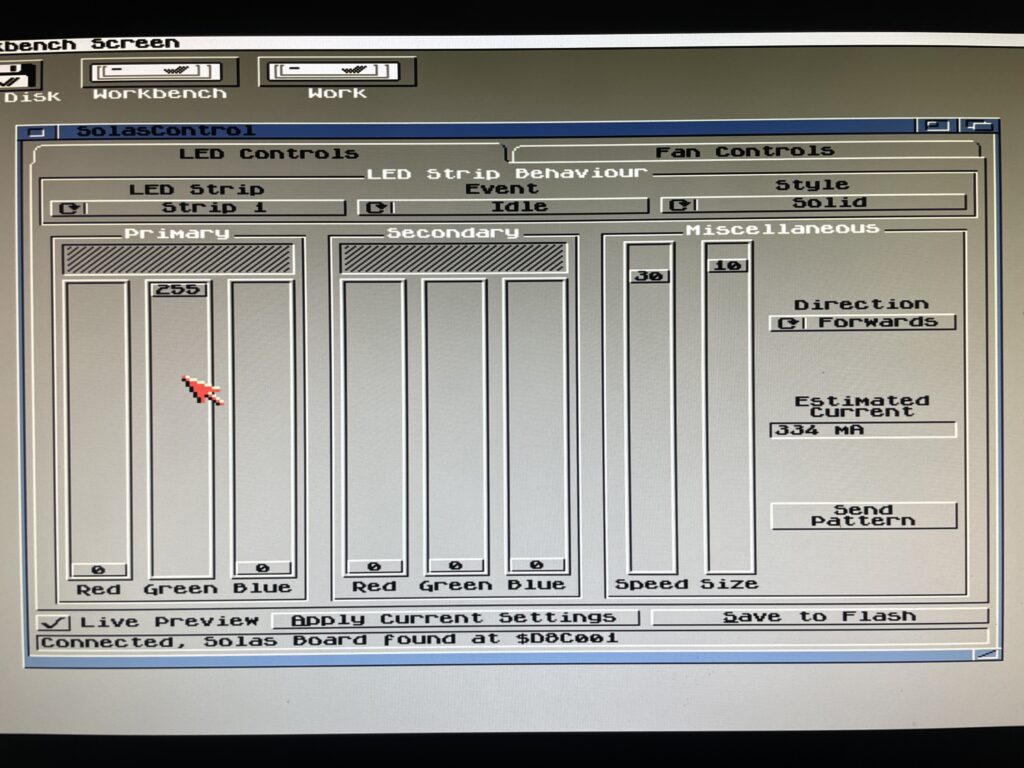
Use SolasControl to configure the Solas board in the Amiga
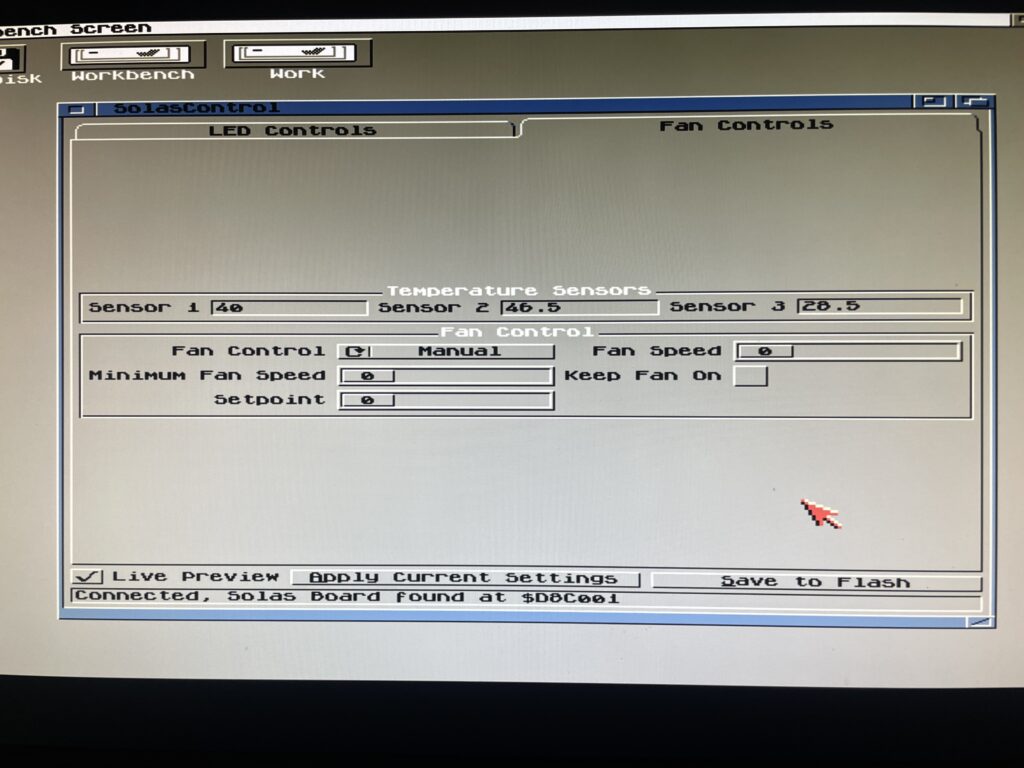
Solas comes with a great MUI based program that lets you configure Solas. The way this works is that you configure Solas, then you save your settings to the Flash on the Solas. That means that Solas will work with software that fully takes control of the Amiga.
SolasControl is an easy to use program, in the image above I have configured Solas to show a solid green light when the Amiga 1200 is idle. It looks like this:
Solas configured to show a solid green color when the A1200 is idle
Solas styles and events
As you can see on the image of SolasControl, you can set the level of brightness for the LED and in the highest strength the LEDs are very bright. I usually do not run the LEDs at the highest brightness.
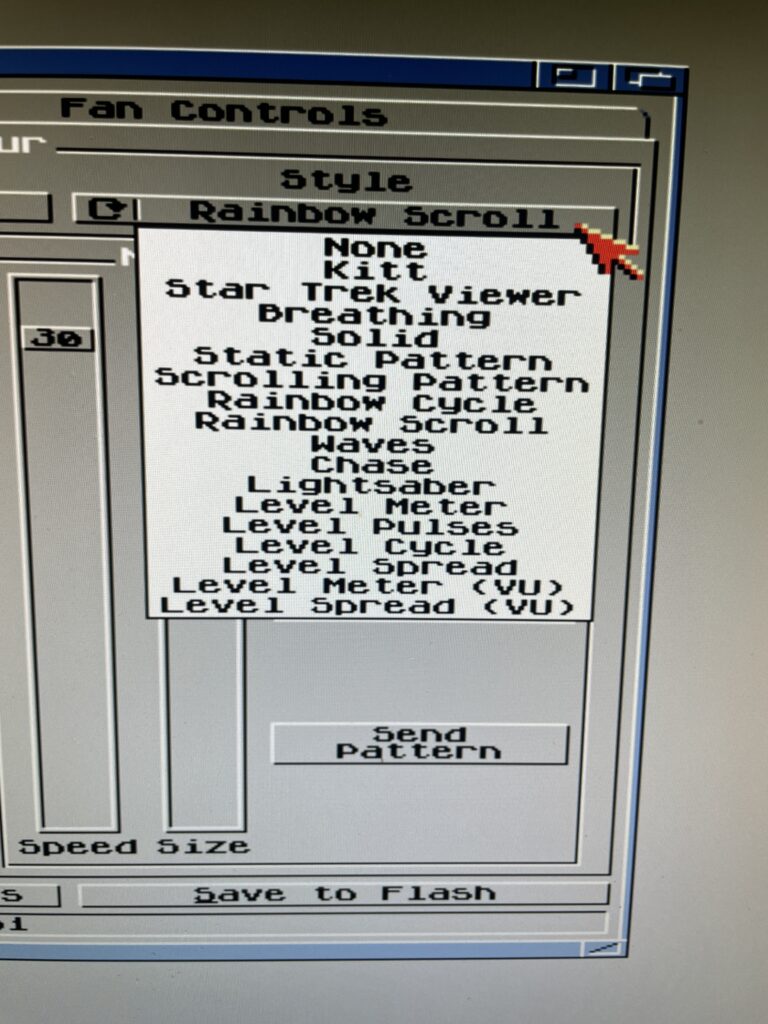
Styles you can chose from in SolasControl
A static color is a bit boring. There are many styles you can chose from, my favorite is a rainbow scroll with a low brightness setting when idle. See the video below to see an example of it where I chosed blue and red as colors for the scroll.
Speed, colors, brightness and size depending on style chosed can be configured to ones preferences.
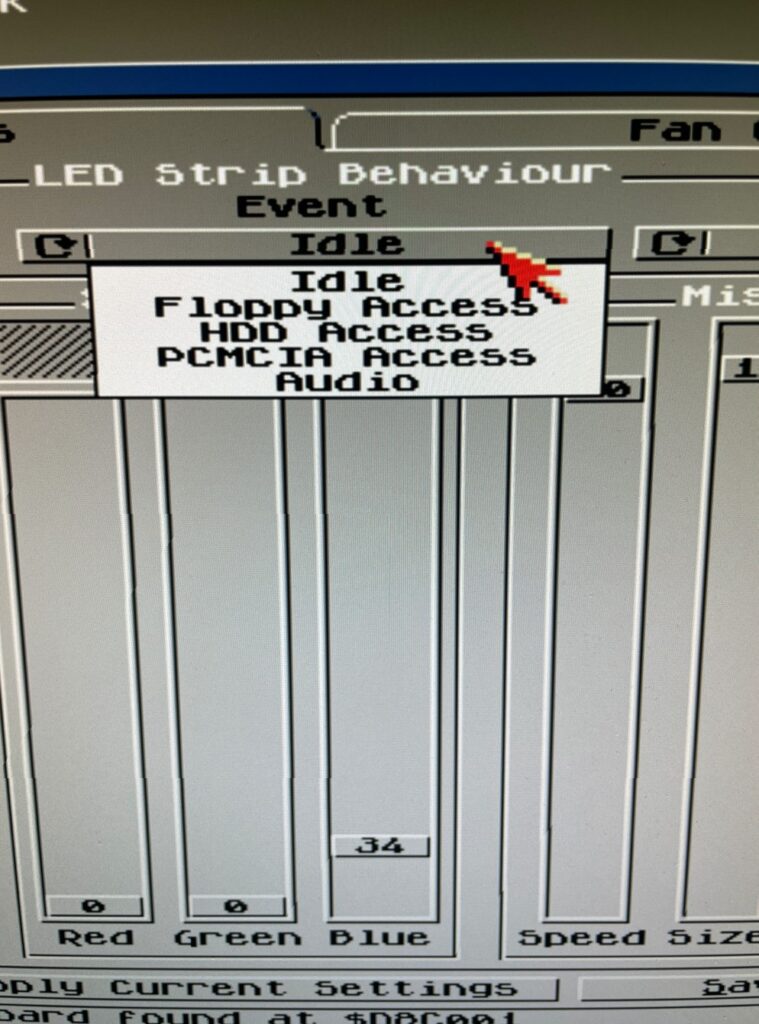
There are in total five types you can set the Solas to react to, Idle, Floppy access, HDD access, PCMCIA access and Audio. Idle just means when Solas is idle (when the other types are not active). Audio is when there is audio output and floppy/HDD and PCMCIA is when there are activity on these devices.
I like to run Star Trek Viewer for HDD Access, its a nice effect when accessing the HDD. I also as said before run Rainbow Scroll with a low brightness setting when idle. And finally, the pièce de résistance, audio. I like Level Meter (VU) for audio!
RGB LEDs reacting to Amiga sound
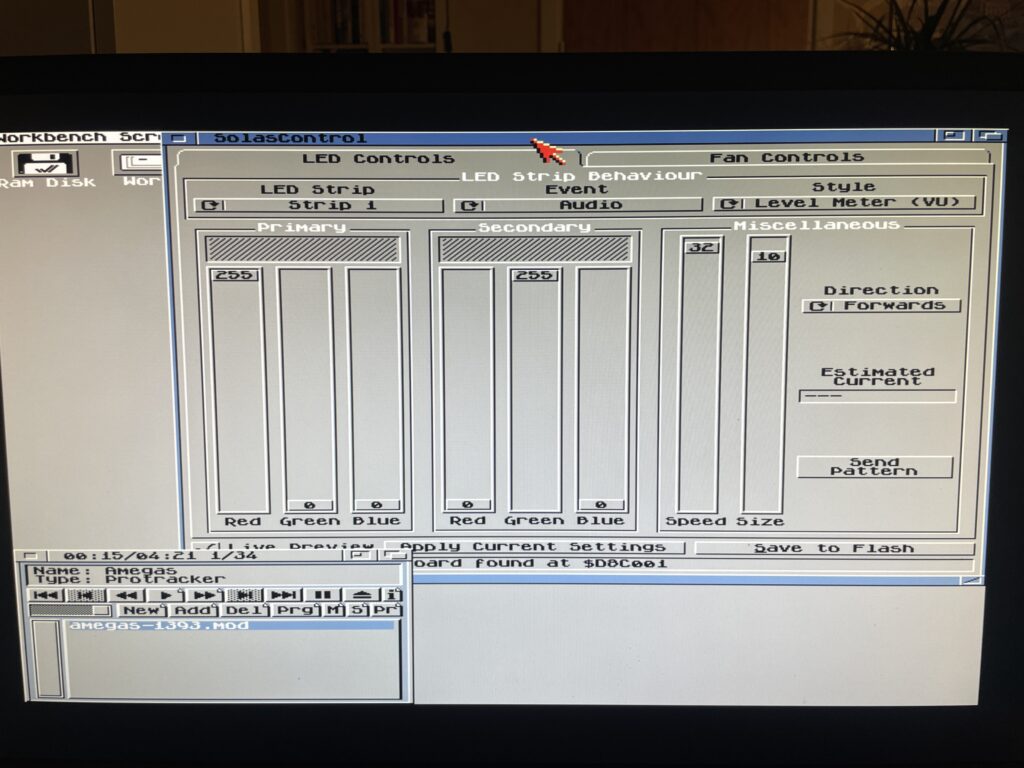
Playing a module in HippoPlayer on the A1200 and watching the RGB LEDs react to sound
I want to point out that I usually run a little more fancy Workbench (even on this non GFX board AGA only Amiga 1200 WB 3.1), but in this case I toned it down a lot to clarify images.
In the image above I play a module in HippoPlayer, I have also configured Solas to show Level Meter when sound is playing. And I think it looks fabulous!
This is actually why I think the Solas is so exciting since I wanted a hardware device like this for the Amiga for a long time. I remember looking for similar types of hardware on AliExpress more than 15 years ago that could be added to a 5.25 bracket back when I had an Amiga 1200 tower. But this is so much better since it can be configured on the Amiga!
What about controlling fans and measuring temps with the Solas?
Solas comes with two sensors you can place where you want to. I placed one on my Indivision (as it runs very hot) and the other on Alice as it also runs hot. It is possible to add a cable between TerribleFire 1260 and Solas to measure 060 temps, but I have not had time to do that yet, but thats on the todo list.
The fan control function is very interesting particularly if using the Solas in a big box Amiga with many Zorro cards and hot CPUs. I think this is a nice alternative to CPLDIcy.
Usefulness of more than one clock port?
There are exciting developments in the Amiga hardware world where some users have created clock port based WIFI cards for the Amiga. There are sound cards for the clock port and USB cards. So having more than one clock port can actually be usefull – who knows what type of hardware will be released for it in the future. Having a couple extra feels great for the future.
Solas and big box Amiga computers
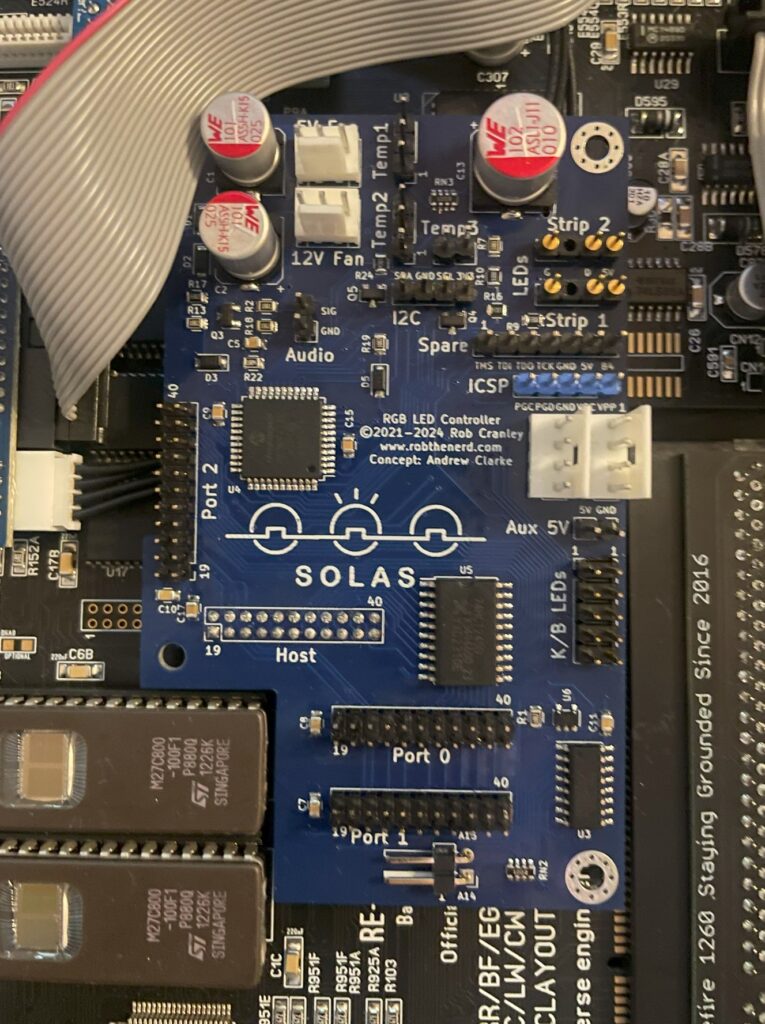
It is possible to add a clock port to a big box Amiga with Zorro slots through an old Buddha card, ZORRO-IDE-LAN-CP card and many other cards. That makes it possible to run Solas in an A2000, A3000 or A4000.
Solas ISA carrier
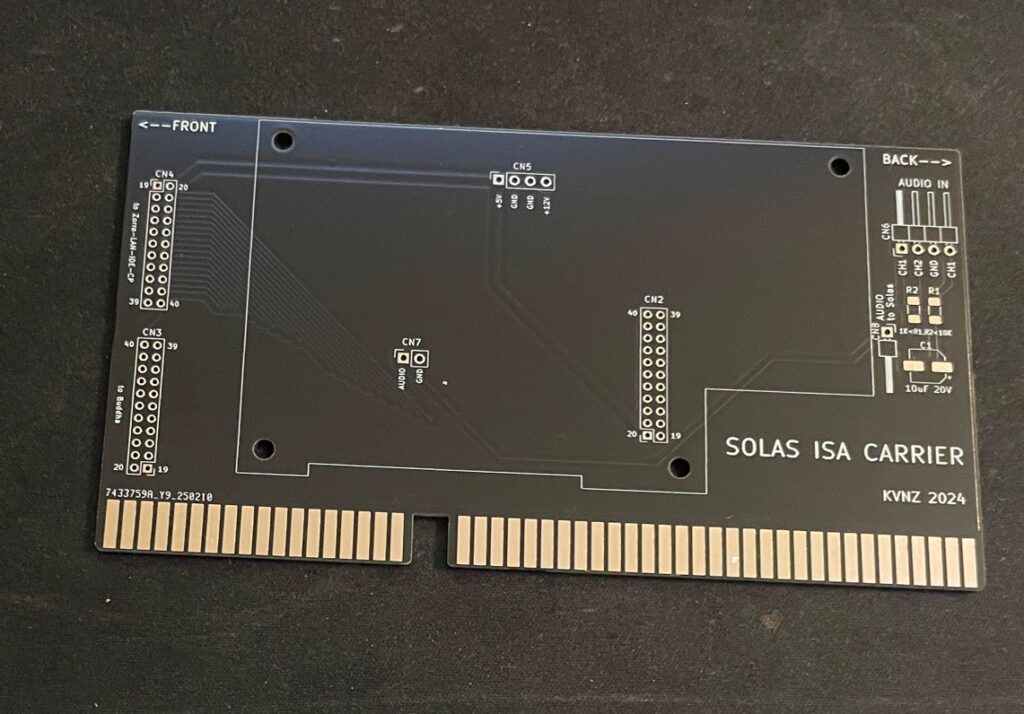
There is also this exciting ISA card that functions as a carrier for the Solas. As you probably already know, ISA slots in an Amiga are totally passive, meant to be used for PC bridgeboards or TBC cards. so the Solas ISA carrier only provides power to the Solas. It has some useful pin headers though.
Solas mounted on the ISA carrier
Mounting the Solas to the ISA carrier board needs a slightly modified Solas card. One also needs to figure out how to connect sound to the Solas. I figured out that I can take it from pin headers on the ZZ9000 graphics card I am running in my Amiga 4000TX.
How I got sound input into the Solas from the ZZ9000
So here is how I hooked up sound input from the ZZ9000 graphics card to the Solas. Unfortunately the picture is a bit grainy but you get the point, L/R goes into the Solas ISA carrier. Also, it is a temporary cable as only two wires are needed.
Here is how the Solas is connected to the clock port of the Zorro-LAN-IDE card
And here is how the Solas is connected to the clock port on the Zorro-LAN-IDE card.
Keep in mind though if you have maxed out your Amiga expansion slots (we are all Amiga snobs left in this hobby right?) this sandwich of the carrier card and the Solas can be difficult to fit as it takes up more height than a regular card – And even more height with the cables connected to it!
I should also show you the LED setup I am running, I am running two LED strips on the inner sides of the front of the case. It looks awesome when playing tunes.
Final thoughs
As you can probably tell, I have only positive things to say about Solas. Highly recommended! I also think the Solas board is one of the greatest hardware developments for the Amiga in recent years (together with PiStorm and open hardware such as BFG and TF series of cards). Great work everybody involved with it 👍
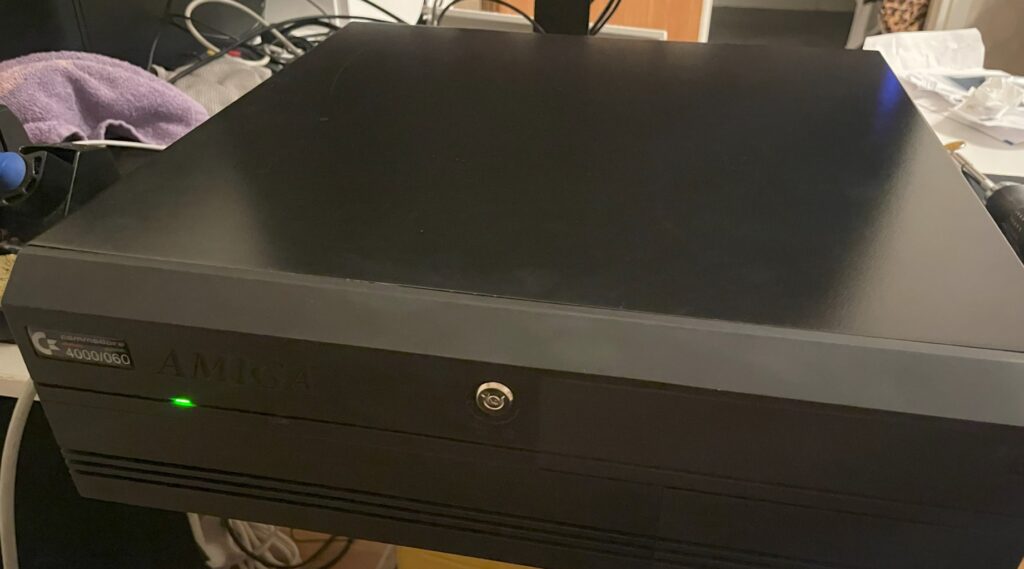
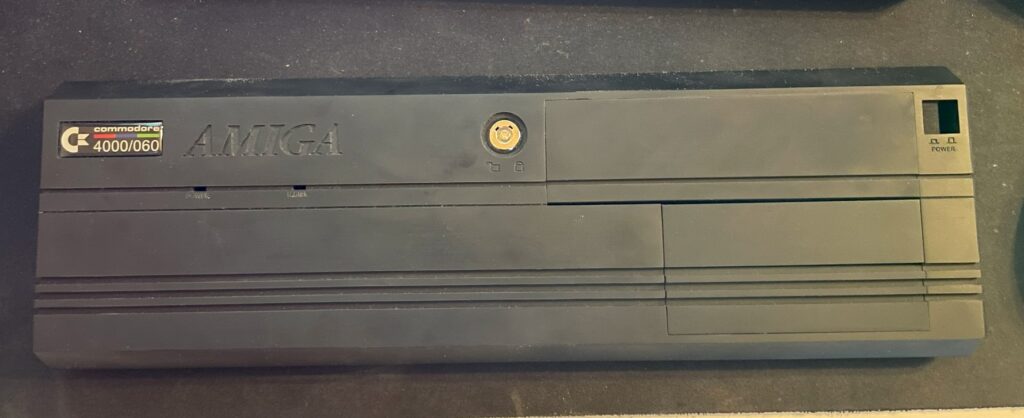
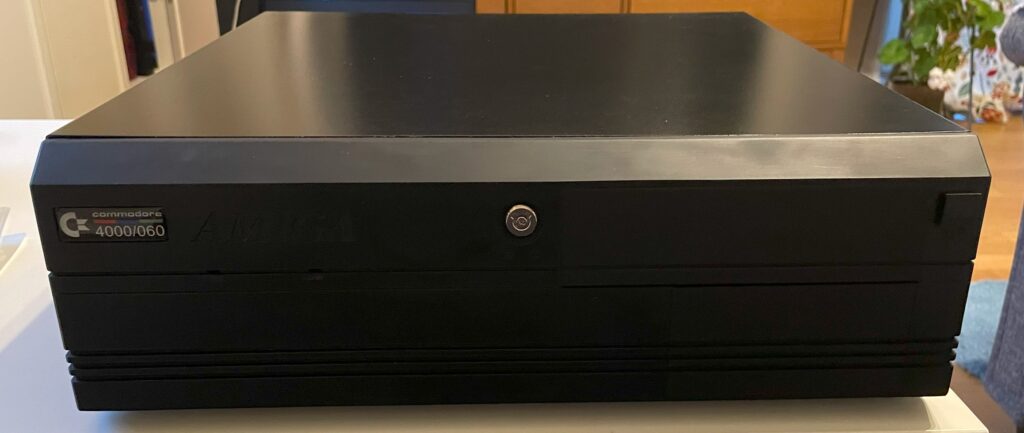
Here is my black Amiga 4000D with a green power LED
I bought a replica Amiga 4000D case off of Amibay earlier this year. One of the joys of building and buying clones and replica hardware is the challenge of finding parts you need. In this case, I needed a front for the A4000D. Thankfully there was 3D model you could download and 3D print that solved the problem, but it did not came with LEDs or the keylock so here came another challenge: find the correct parts for the LED, how to mount them and where to find the keylock.
Amiga 4000D LEDs
Amiga 4000D front panel LED
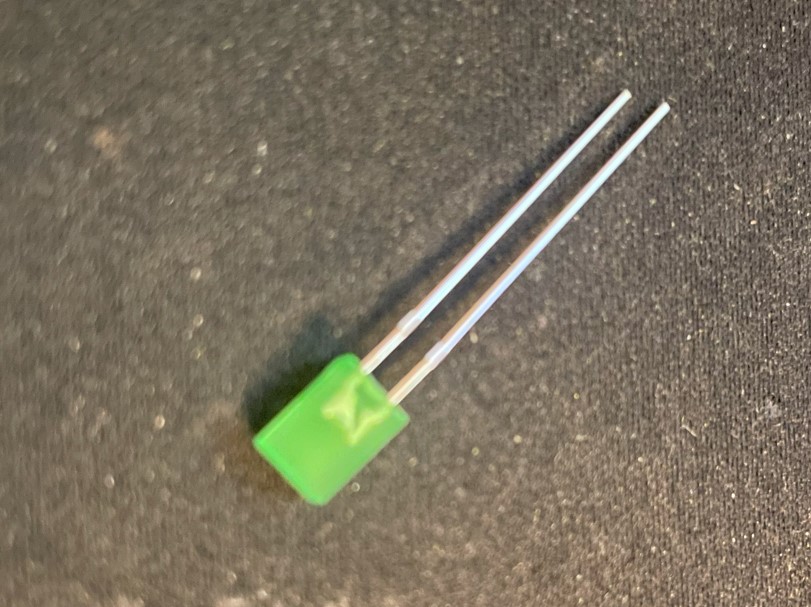
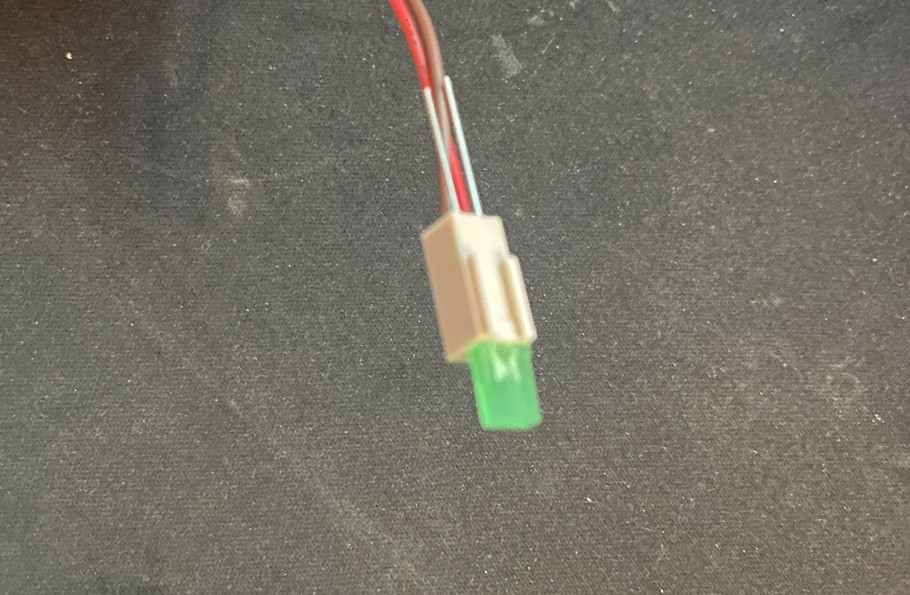
So the LEDs are standard square, flat 5v LEDs. These can be found in most electronic shops, here is a link to the green ones I bought. I think green looks fine, there was yellow and orange also and probably blue if you look around. I am not that fond of blue leds so green was it.
A4000D uses a two pin Molex connector and a flat LED
The LEDs are mounted to two terminal Molex connector (2.54mm). The Molex connector slips into the opening over the cable sleeves. If I remember correctly this is actually how they are setup on a genuine A4000D. On the picture above you can see the long pins of the LED sticking out through the back of the Molex connector, I cut these off and bent them over the Molex connector afterwards.
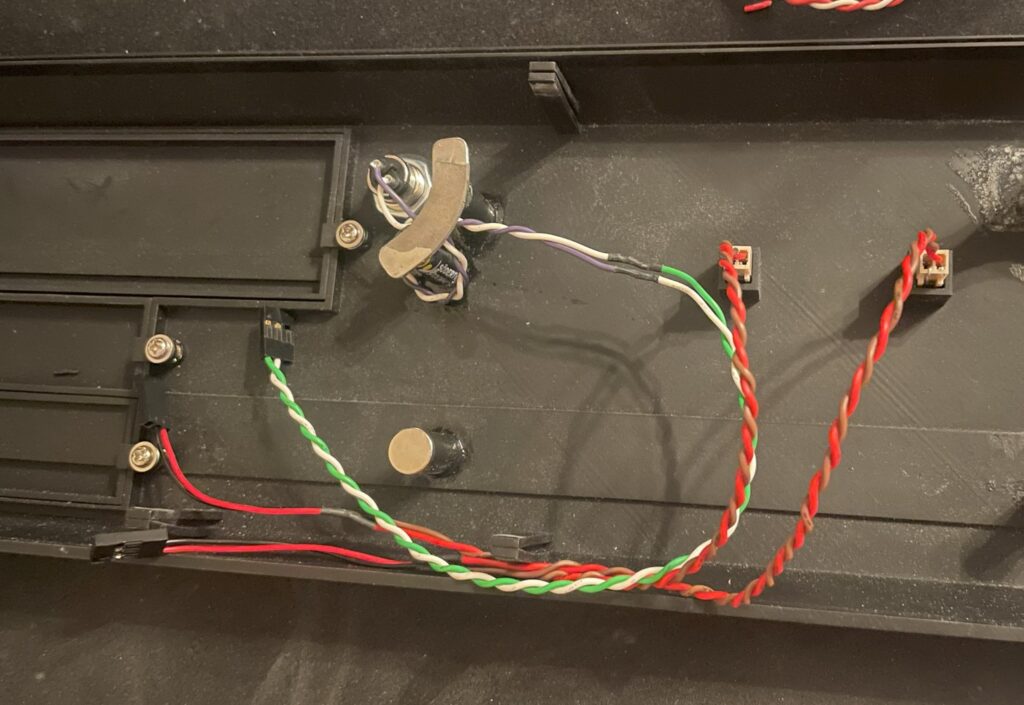
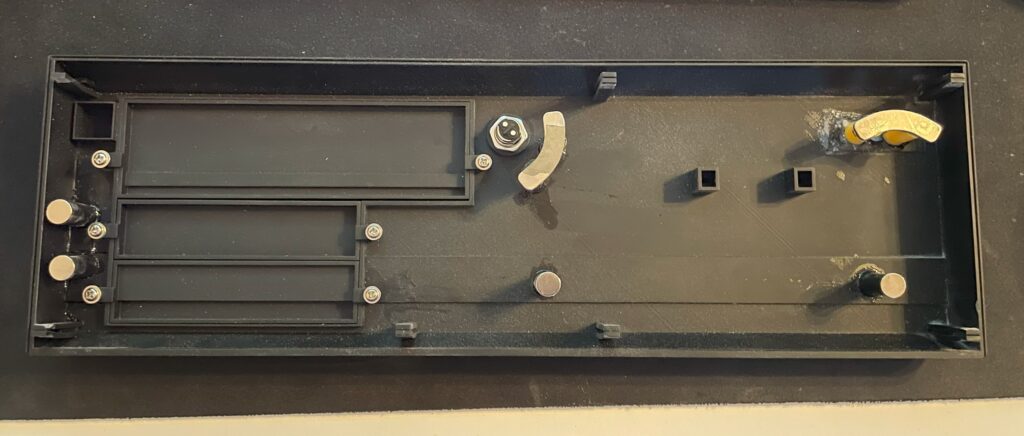
There are magnets on the back of the A4000D front that holds it to the chassi.
Here you can see the 2 pin Molex connector placed into the holes for the LED. On an older A4000D I had (a genuine one) I put a dab of hot glue on them to hold them in place, perhaps I will do it on this A4000D replica too in the future, but for the moment they stay fit on the A4000D front with no problem. You can also see the cables, they are soldered to three pin 2.54mm connectors. One pin is left out.
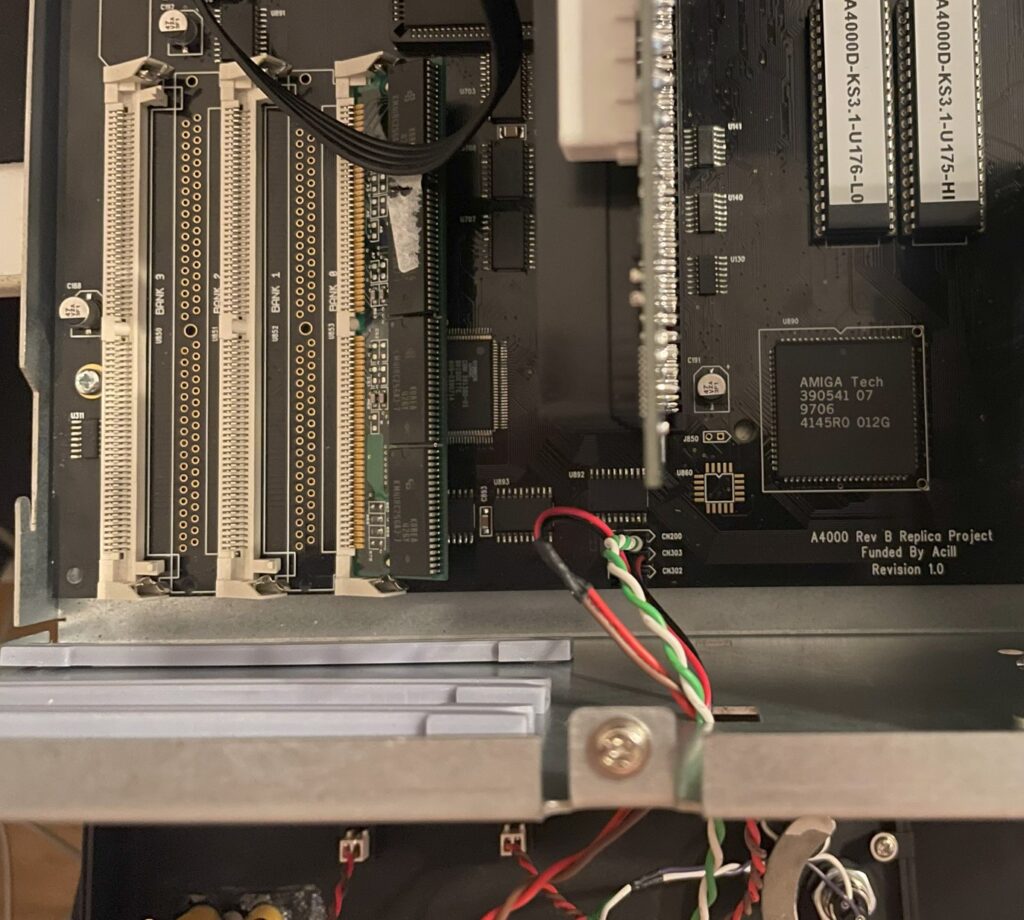
Cables are inserted to the A4000D motherboard
At first the LEDs did not light up, so I just switched positions on the cables and then they worked as they should. If you look at the A4000D motherboard circuit to the pinouts, you can see that the middle pin is unique, but the two outher pins are the same (hooked up together). So if you have the correct polarity you can flip them around and they should work.
Amiga 4000D keylock
Amiga 4000D front with keylock
The Mouser part number for the keylock is, 612-KO132A1501 – here is the page for it on Mouser. If I remember correctly the keylock does not disable the A4000D from working, it just disables the keyboard. And to be totally honest, a keylock in this day and age is kind of pointless, however the A4000D front would not look correct without one, so I “had” to get one. I just soldered two wires to the terminals of the keylock and hooked it up to the motherboard.
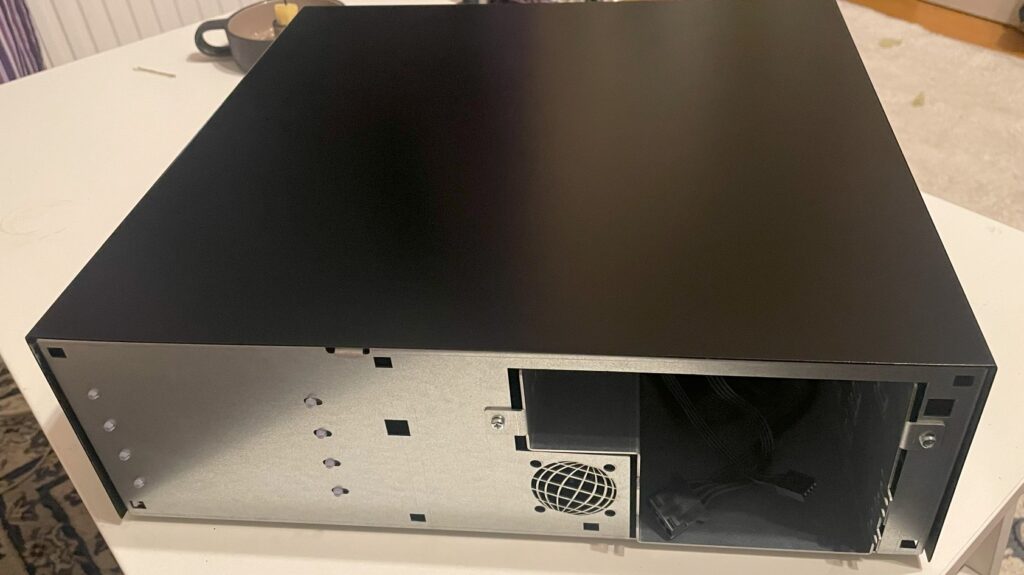
I bought a replica Amiga 4000D case earlier this year on Amibay. It is really good clone of the A4000D case with the exception it has slightly better cooling, space for a 40 mm fan, was painted black, has some options the original Commodore A4000D did not have, uses an SFX ATX PSU and did not come with a front panel.
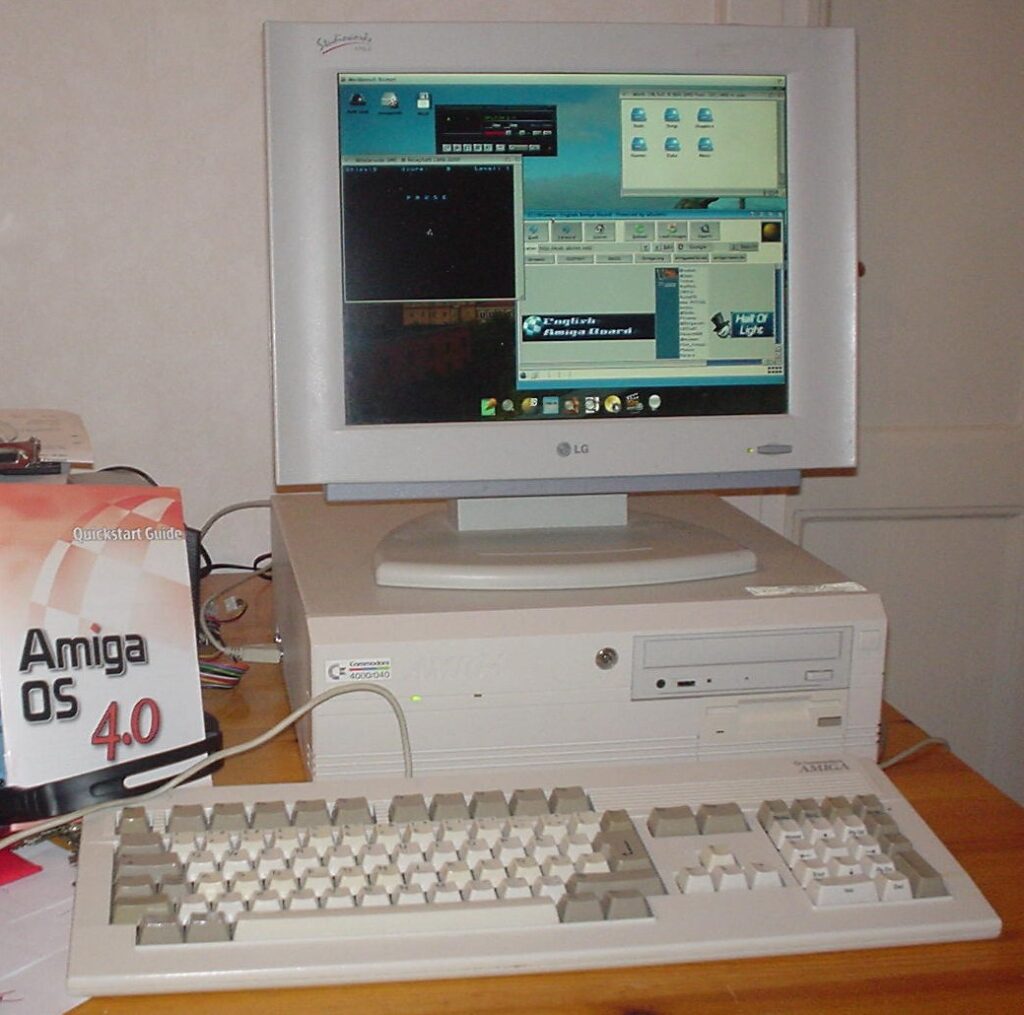
I really like the look of the A4000D (even if it is just a lousy PC case that was adapted to the A4000D in the last minute), especially the front panel. If there is a template for a professional early 90ies computer case, I think this could be one of them (together with SGI, Sparcstation and so on) – There is just something about the angled look of it and the Amiga logo inprinted in the case cover mold.
Functionality wise, the case is a disaster. The Amiga 4000D case has lousy cooling. The whole case depends on the fan in the PSU to cool the whole system. There is no active cooling at all on the Zorro board section. It has the mouse and joystick port awkwardly mounted on the side making it difficult to remove the cover. And while it has a 5.25 slot, it is too shallow and wont take a full length CD-rom (or DVD). Many of these problems has been solved in the replica case and many of these problems are not problems anymore (I never want to touch optical media again).
What about the A4000D 3D printed front panel?
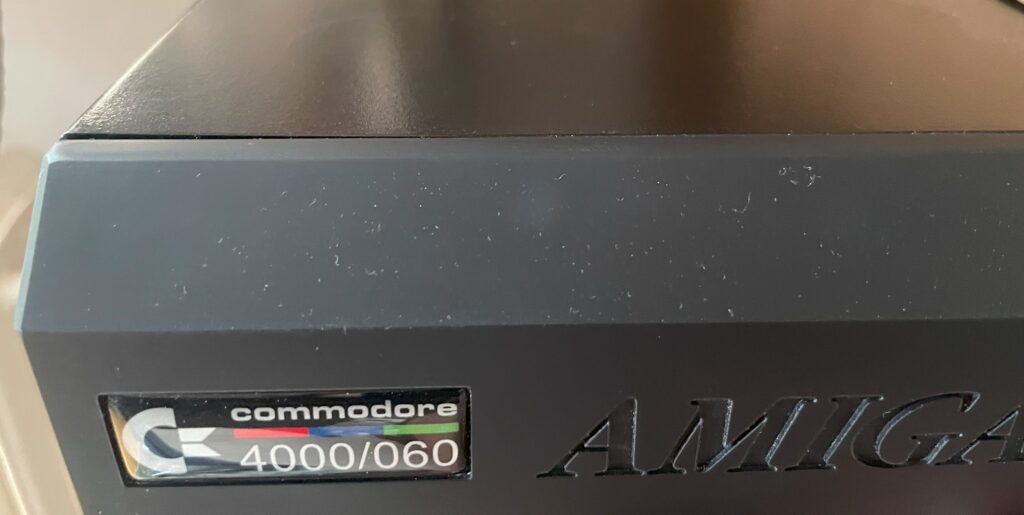
Its a bit dusty in the picture but the finish is really smooth
The files for the 3D printed A4000D cover can be found here. You can find the different 5.25 and 3.5 cover slots there too. I got them printed at JLCPCB in nylon resin and something, I have forgotten, I also got the power button on a stick 3D printed. All in all the total cost was somewhere around 50 euro, very affordable IMHO. The front was printed in one piece. It has a bit of a rough look to it if you look close, but it is surprisingly well done. I do like the rough look as it resonates with the home built A4000D motherboard, its not perfect as in a factory made case/computer as it is DIY built.
However, the front panel do not fit on the A4000D case that good. The clips are too long and they are really soft and became slack quick, meaning the front panel hangs off the front of the case and just looks cheap.
How I got the Amiga 4000D 3D printed front panel attached to the case
I had an idea to use strong neodymium magnets to hold the front cover onto the A4000D case.
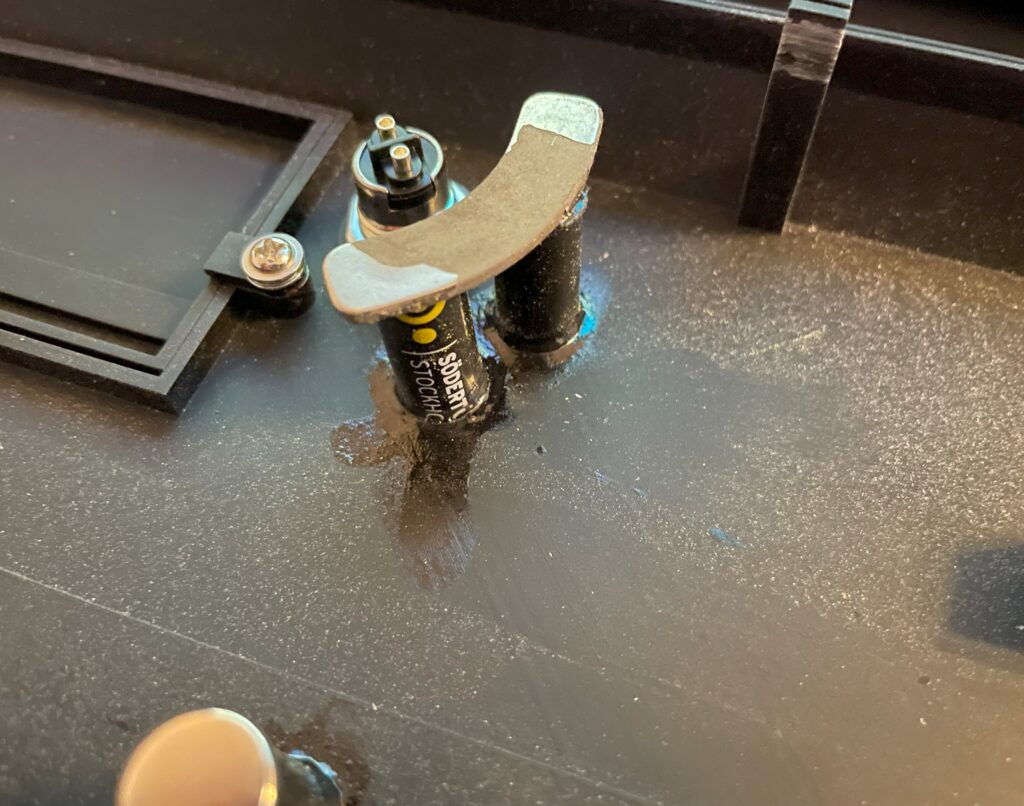
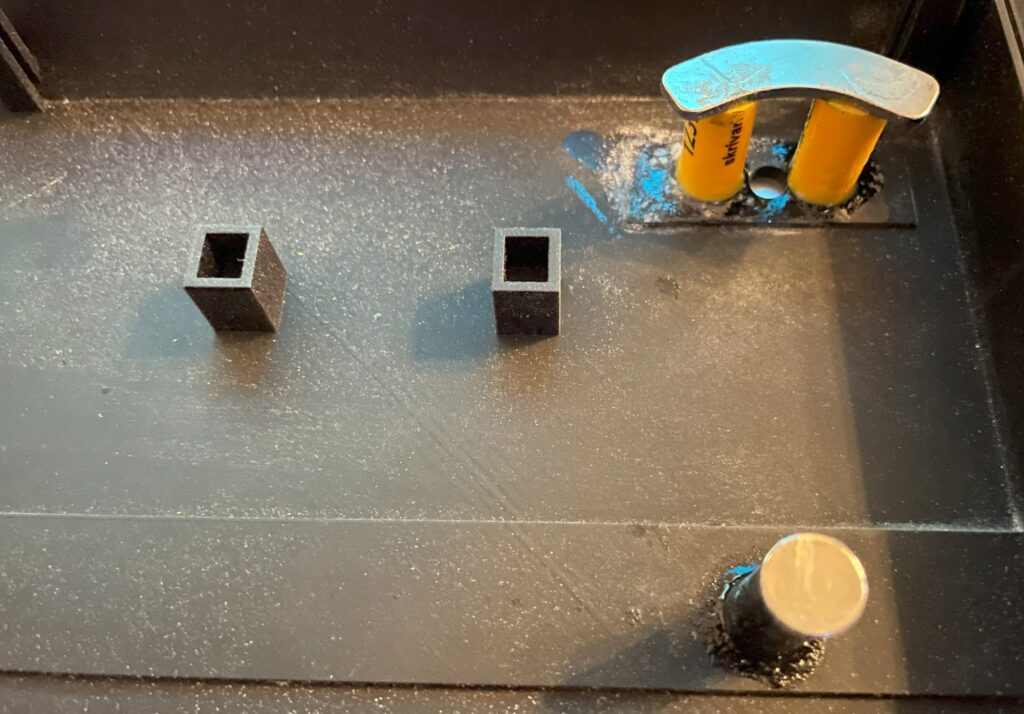
In the picture above you can see four round magnets and two banana shaped magnets. The banana shaped magnets came from an old 3.5″ harddrive that I recycled. These magnets are really strong.
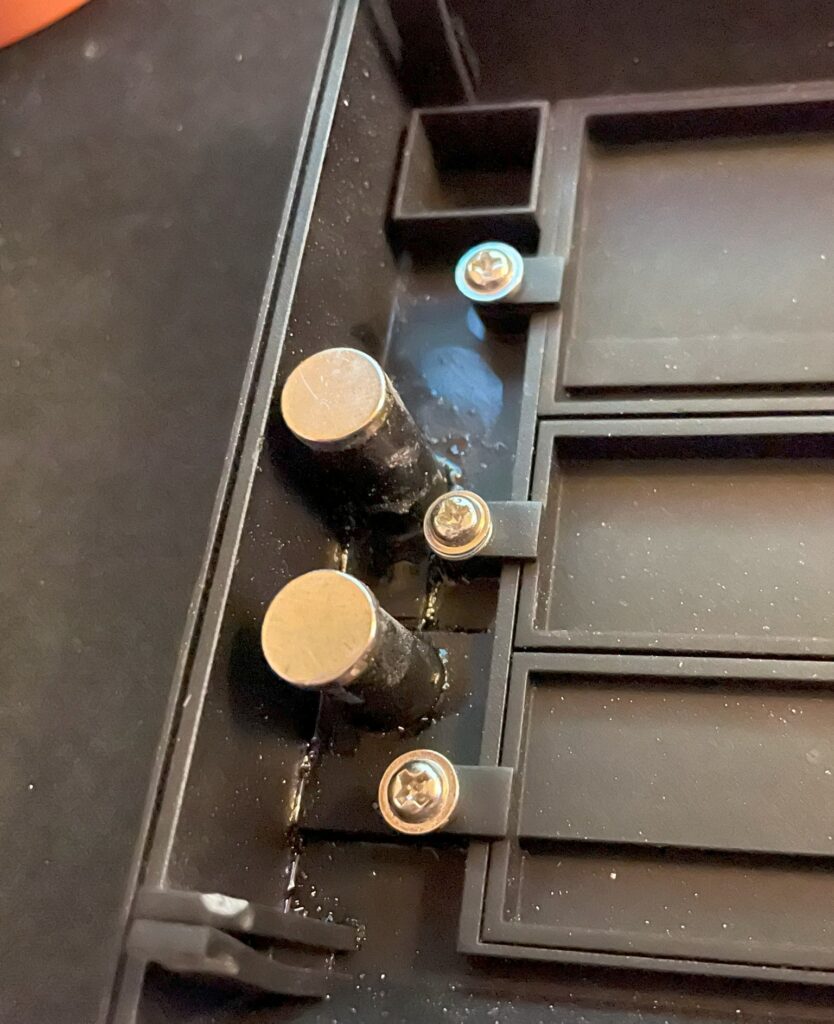
The round magnets are also neodymium magnets but less strong. If I was to start over I would just use three of the really strong banana shaped magnets they hold the 3D printed front panel to the case strong and secure. See the peg in the bottom left corner and how it has sagged.
It looks a bit sloppy because it is, I will paint the stand offs for the magnets black and maybe even add some black bondo to them to make it look nicer. However as a proof of concept everything works and is secure. The stand offs are regular plastic pencils that I cut to lenght and then super glued to the 3D printed A4000D front, I then super glued the magnet to them and let everything dry over the night.
I thought that the magnets would work themself loose from being super glued to the stand offs but I have been proven wrong. They are secured to the stand offs and case and wont move or brake off.
Here is the case with the cover added to it, being held to the case just by the magnets. Taking it off the case needs a lot of force. To make it easier I sanded off the hooks on the pegs of the front cover to make it easier to slide out the holes of the front of the case. Again, looks rough but works fine.
Here is a closeup of the 3D printed A4000D front cover, the badge was bought from a store online.
All in all I am very happy with my black A4000D case. I think it fits into a modern office much better when it is black as so few computers come in beige these days.
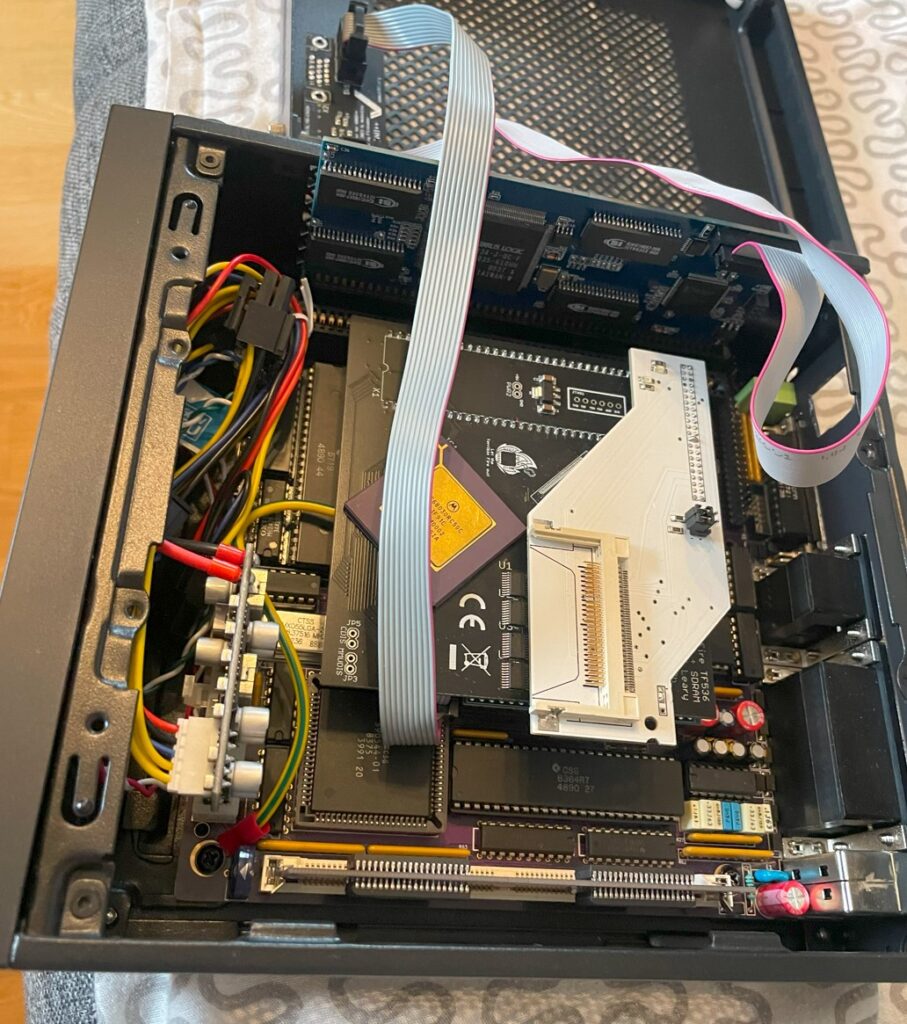
I have an Amiga 4000D that is in a work in progress state. I am in no rush to get it finished and I enjoy the process of setting it up. It is an Acill A4000D motherboard that built last year. It has a Firebird PCI daughter card, a MicroniK scandoubler and a C= 030 CPU card. Everything is mounted in a replica black A4000D case with a 3D printed A4000D front (incl. covers). Final state of this Amiga 4000 will probably look a lot different but for testing purposes, this will be fine.
Adding a IDE-CF interface to the Amiga 4000D
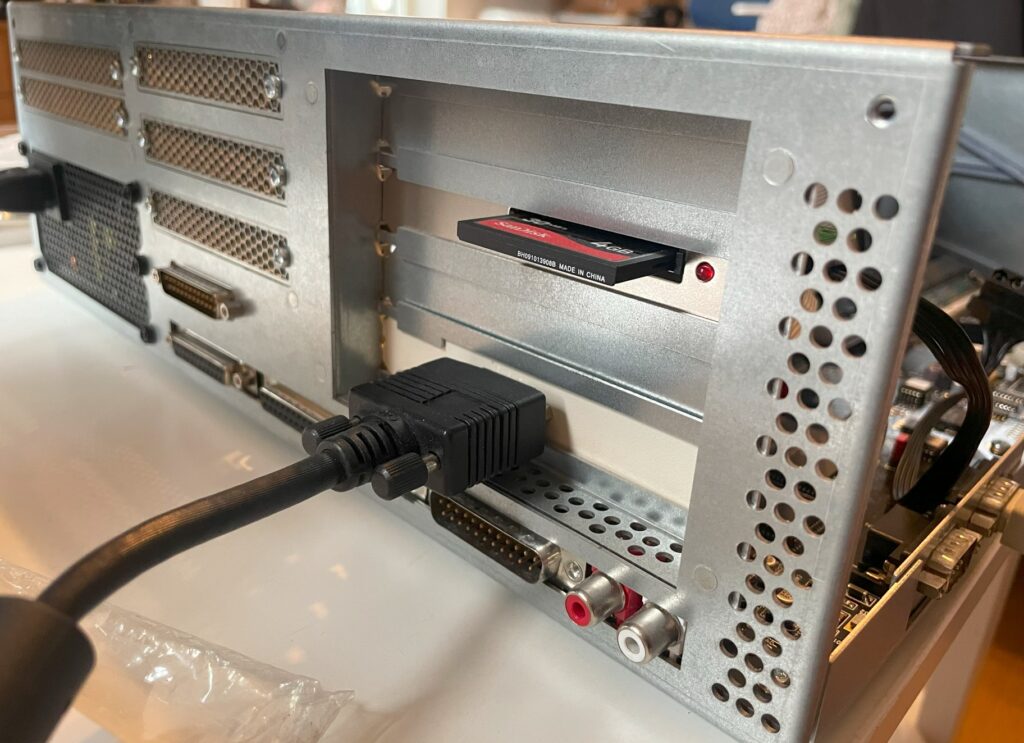
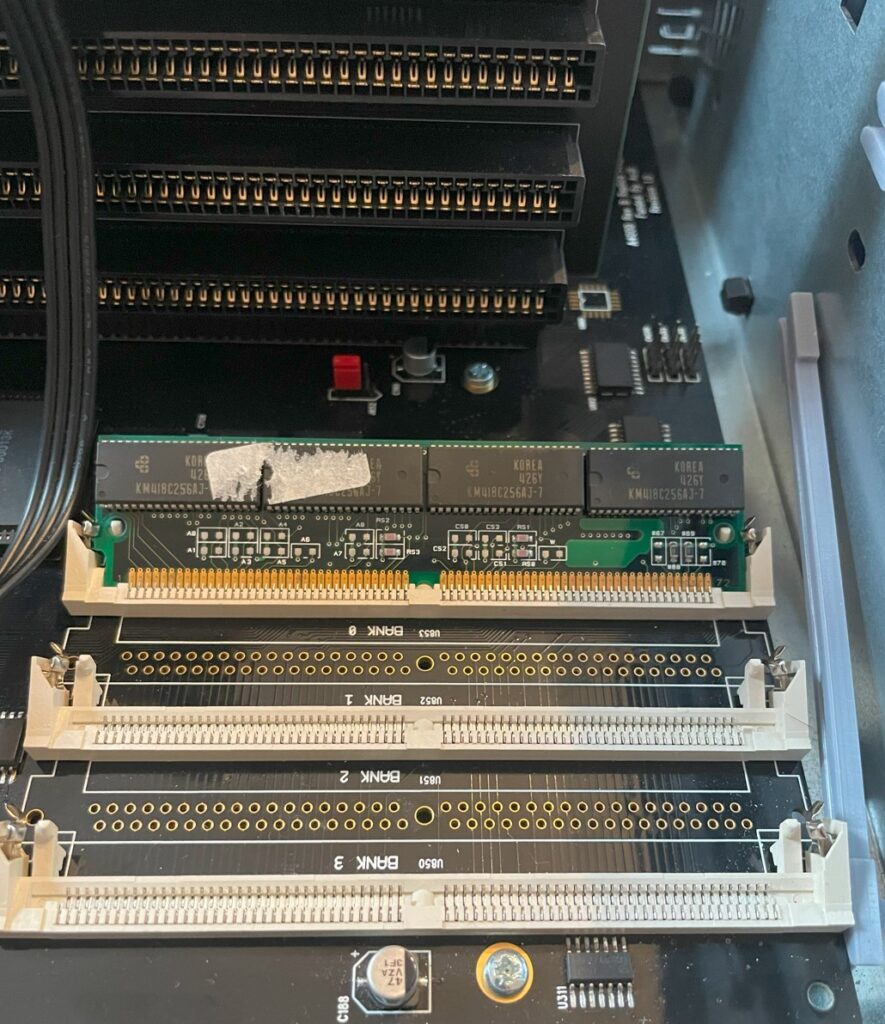
Today I added a slot bracket mounted Compact Flash card adapter to it so I could test out a couple of 72-pin SIMM slots. I do not have a floppy drive in most of my Amigas so I had to run Workbench of off a CF card to be able to see total memory. Thankfully I still have old school 40 pin IDE cables in my parts stash.
I used the Workbench installation from my Denise ITX Amiga 500+ clone by simply borrowing the CF card from it. I will post some more info on this beautiful little Amiga computer later sometimes.
With the CF card inserted in the Compact flash adapter my A4000D booted happily of off the WB 3.1 installation on the CF card. Having the CF card accessible from the outside of the Amiga is a must. I often find myself mounting the CF card in WinUAE to take backups and to install and transfer software.
Testing 72 pin SIMM memory
The first thing I wanted to do was to remove the 32 MB SIMM I was using in the Chip memory socket and replace it with a genuine 2 MB SIMM. All fine, the 2 MB 72 pin SIMM worked fine as chip mem! 2 MB 72 pin SIMM memory is getting more difficult to find these days unfortunately – hopefully there will be more DIY options in the future.
The A4000D supports up to 16 MB fast memory on the motherboard, either through four 4 MB memory modules or through two 8 MB memory modules. You can see that I built the A4000D motherboard with only two 72 pin sockets for fast memory, so I need two 8 MB modules to get 16 MB.
Unfortunately, I did not have any 8 MB SIMM memory (all I had was 16 and 32 MB modules) so the maximum memory I could add was 4 MB (one 16 MB SIMM becomes 2 MB in the socket). 72 pin memory modules rarely indicated memory size so it was necessary to test them in a computer. Now this is not really a problem since I will be running either a BFG9060 or a TF 060 card in this computer. But it is always nice to max out memory if it is possible to so.
Conclusion
I added a new thing to my todo list, find some 8 MB SIMMs.
I also flagged some things on the todo list as finished, CF card adapter + chip mem is working.