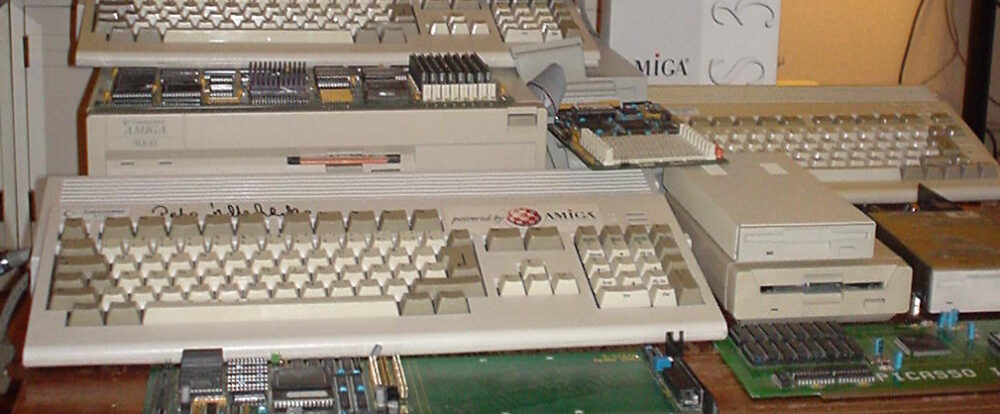
I got an WIFI adapter for my Sam440EP last year. Since then I have wanted to get SAMBA shares up and running on the Amiga for easy file transfers and accessing data that lives on my workstation from my Amiga.
I played around with SAMBA for Amiga as early as 1998 when I bought an Amiga 3000 with an ASDG LanRover card (for 50 euro). I never got it going though as the SAMBA archive on Aminet was confusing to follow.
How I got SMB2FS working on AmigaOS 4.1
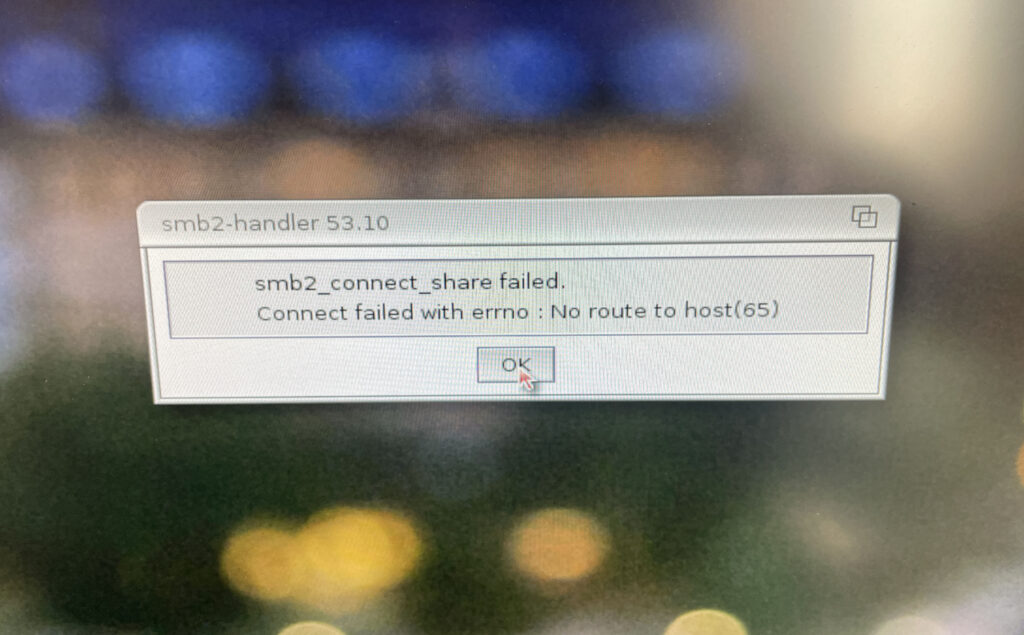
First of all, a small disclaimer – this is how I got access to PC SAMBA shares on AmigaOS 4.1 working, it might not be the default way of doing it but it worked for me. I tried a lot of different configurations until this one worked.
Before doing the installation I recommend to double check that both machines can see each other on the network. That is done by pinging the PC from the Amiga and vice versa. To find out the IP number on the Amiga, I typed inshownetstatus in CLI. Once ping confirmed both computers shaking hands with each other, I decided to continue.
Step 1 – Download and install SMB2FS
The first thing I did was to download SMB2FS from OS4Depot. Once download I clicked on the install icon. Unlike the SAMBA installations of old on Amiga SMB2FS is much easier to setup and lets you add shares on the Amiga only. Seems like you do not have to be a Unix expert or MCSE geek to get it going anymore.
Step 2 – Adding a dosdriver for the share
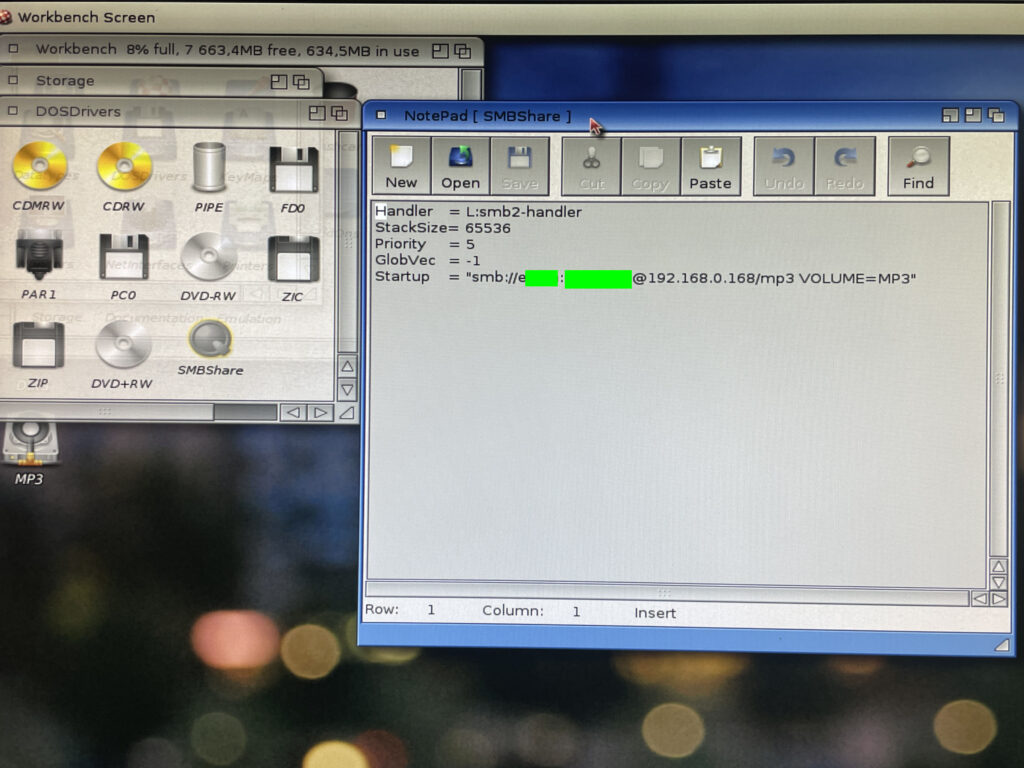
The next thing I did after installing SMB2FS was to copy a dosdriver in sys:storage/dosdrivers. I renamed the dosdriver to SMBShare. Then I opened the dosdriver in notepad and added:
Handler   = L:smb2-handler
StackSize = 65536
Priority  = 5
GlobVec   = -1
Startup   = "smb://username:password@ipnumber/share-on-pc VOLUME=volume-name"
Where:
- Username = The username for logging in to my workstation running Windows 11.
- Password = The local password I use to log into my workstation.
- Share-on-pc = The name of the folder that I shared on my workstation.
- VOLUME = The name the shared volume should have in AmigaOS4
Some notes here that I would have been glad if they were specified somewere.
- The username is the name you see when you open a command line on Windows.
- The password has to be a local password, it wont work with a Microsoft password (the password you use for you Microsoft account).
As I understood it you should then add a default tool “c:mount” to the icon and add “activate=1” to the tooltype of the dosdriver. If you drag it over to sys:devs/dosdrivers/ and reboot then you would see the share on the desktop. But it did not for some reason work for me.
Note:
What worked was setting tooltype “activate=0” and then activating device in shell like typing in “smbshare:” (if that is what it was named to). But I wanted the share to auto mount during startup.
Step 3 – Starting the share
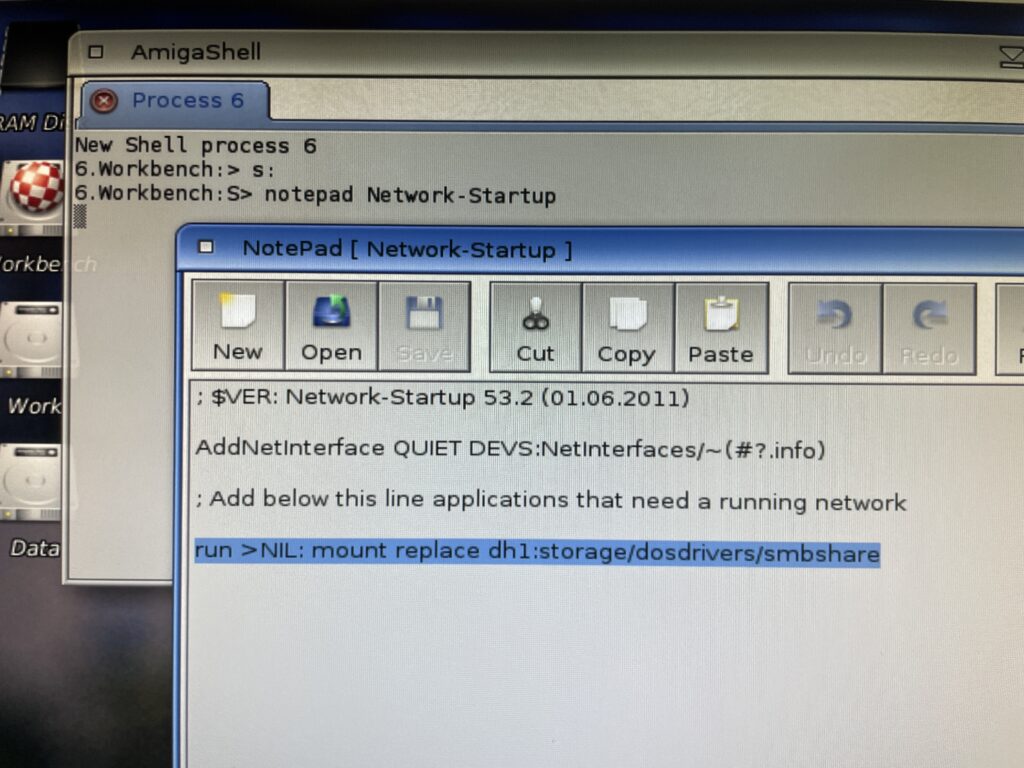
I got it the share to mount if I kept the dosdriver in sys:storage/dosdrivers and mounted the dosdriver from CLI by running “mount replace dh1:storage/dosdrivers/smbshare” (if you wonder why sys: is dh1:, that was an error by me during installation, off course it should be dh0:).
So I added that line to Network-Startup inside S: (not sure if you have to add run >NIL: but did not try without). During testing, I had to add replace to the mount command. Not sure why, but that is why I added it to the line here.
Step 4 – Trying out Windows 11 SAMBA share on AmigaOS 4.1
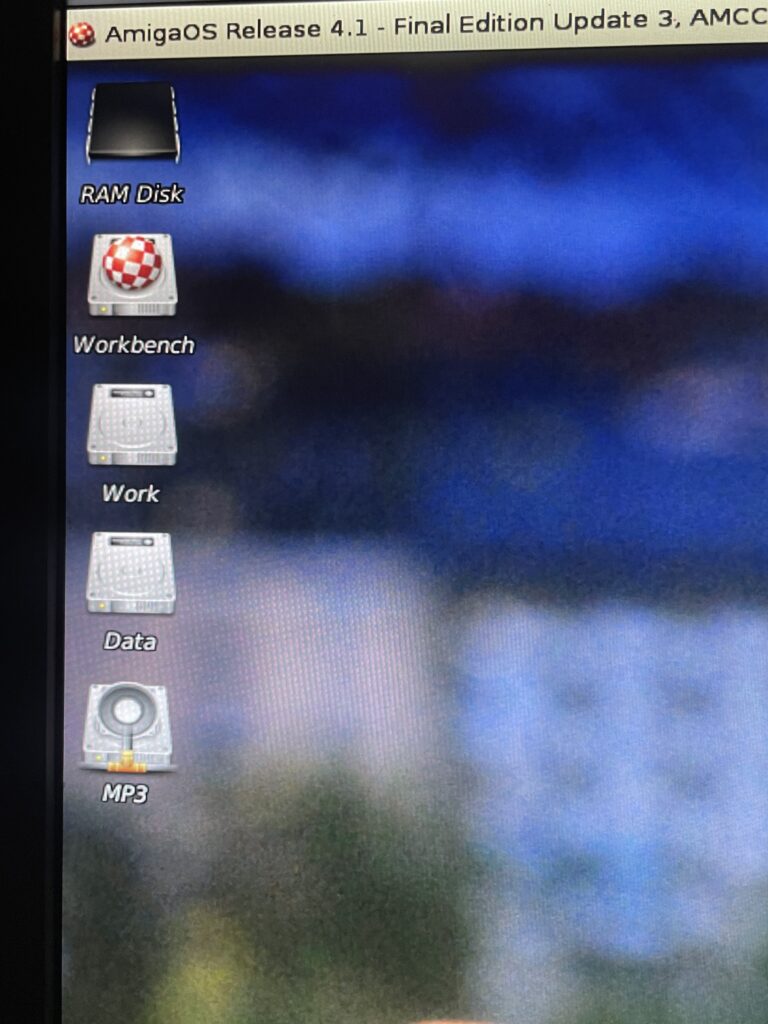
After a reboot the share popped up on Workbench! The share from the PC is the bottom device “MP3”. I have added an icon to the share otherwise it defaults to the regular AmigaOS 4.1 HDD icon. The share can be snapshotted wherever I want it on the desktop.
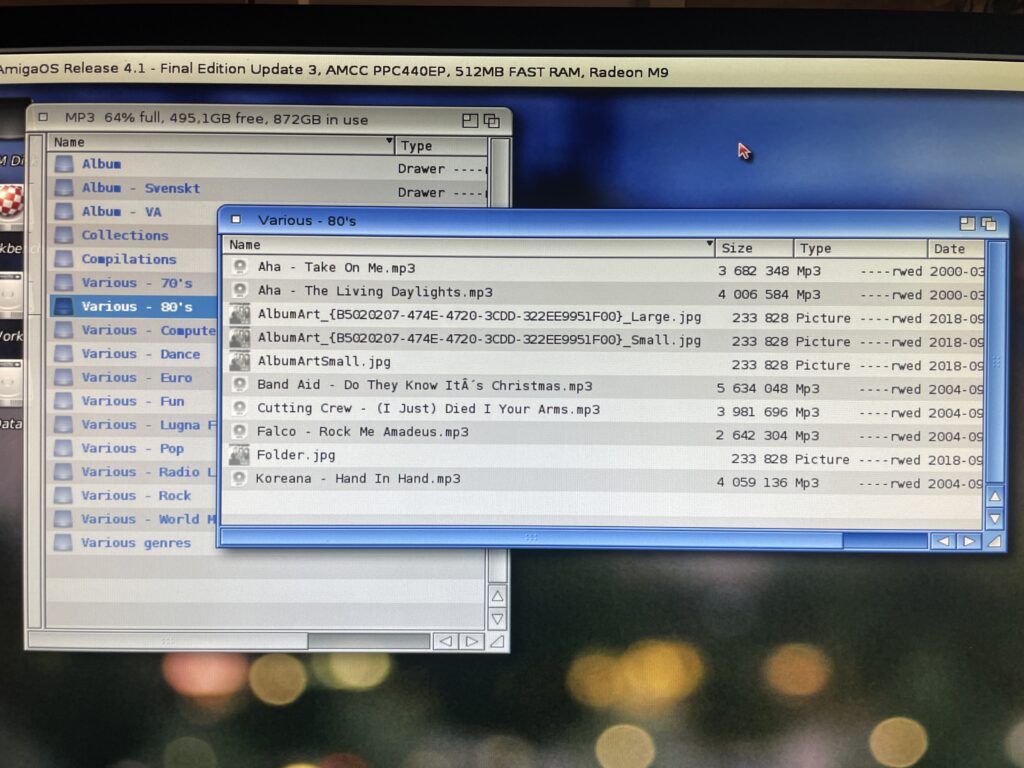
I have two drawers from the share open here on my AmigaOS4.1 desktop. One showing the top level of the SAMBA share and one of a sub folder. Opening folders in the share can take some time if there are many files inside them, but it is not that bad.
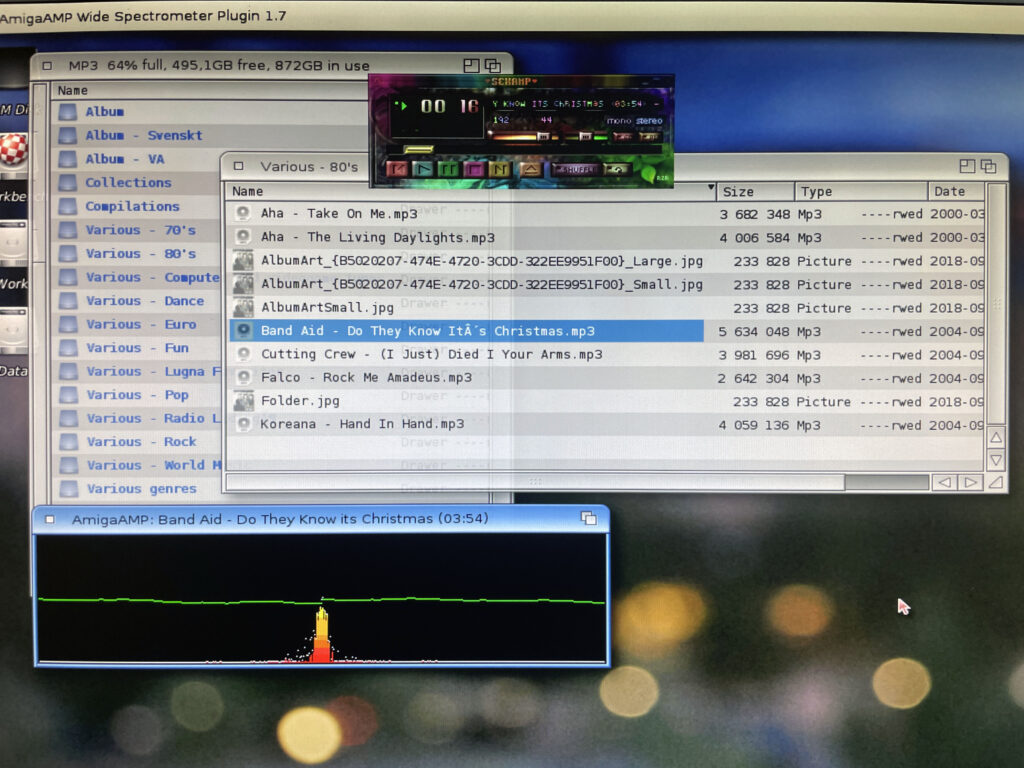
I have dragged an MP3 file to AmigaAMP that plays the tune from the share over the network. Occasionally there is some lag. I think that is because I am running a wireless adapter, but it is not that bad.
Next steps
- Install SMB2FS on my 68k Amiga systems. DONE, it was almost exactly the same procedure.
- I would also like to share the full Amiga partitions to my workstation, that way I would for example be able to edit s:user-startup or restructuring partitions or add/remove files from my PC.